Local device accounts
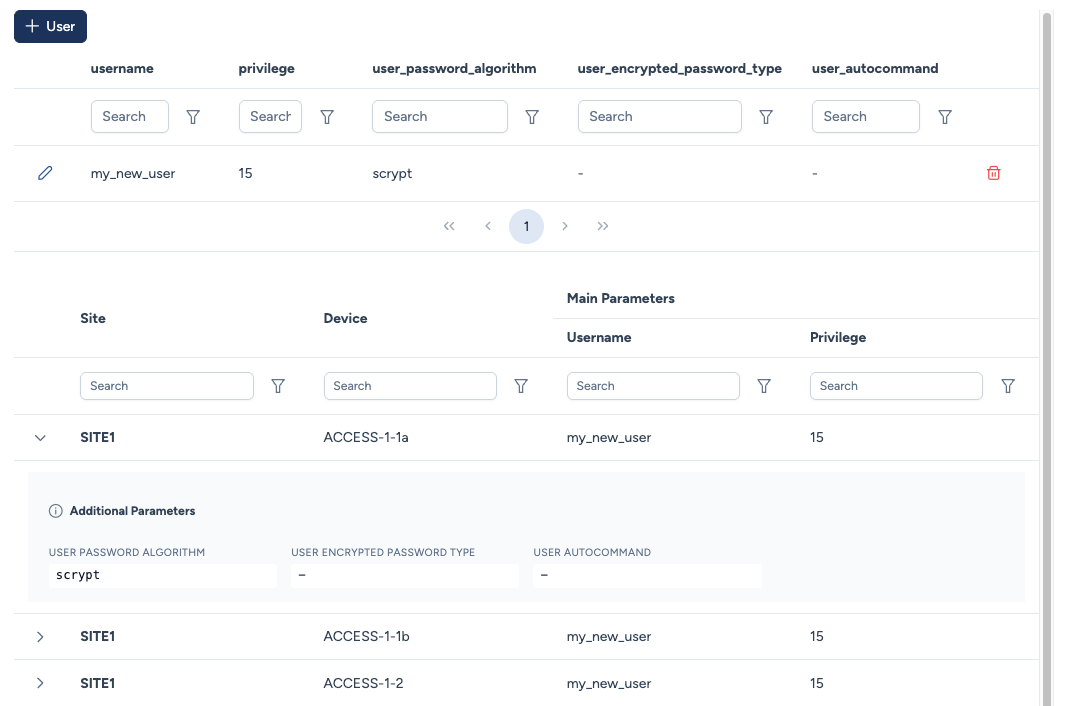
This section allows you to manage local user accounts on your devices. These accounts are typically used as fallback credentials (in case central authentication like RADIUS is unreachable) or for specific automated services.
Avalon centralizes this management in a single view divided into two logical sections:
- Pre-configured Services - Top: The global library of user account templates.
- Service Instances: The audit view showing where these users are actually deployed on the network.
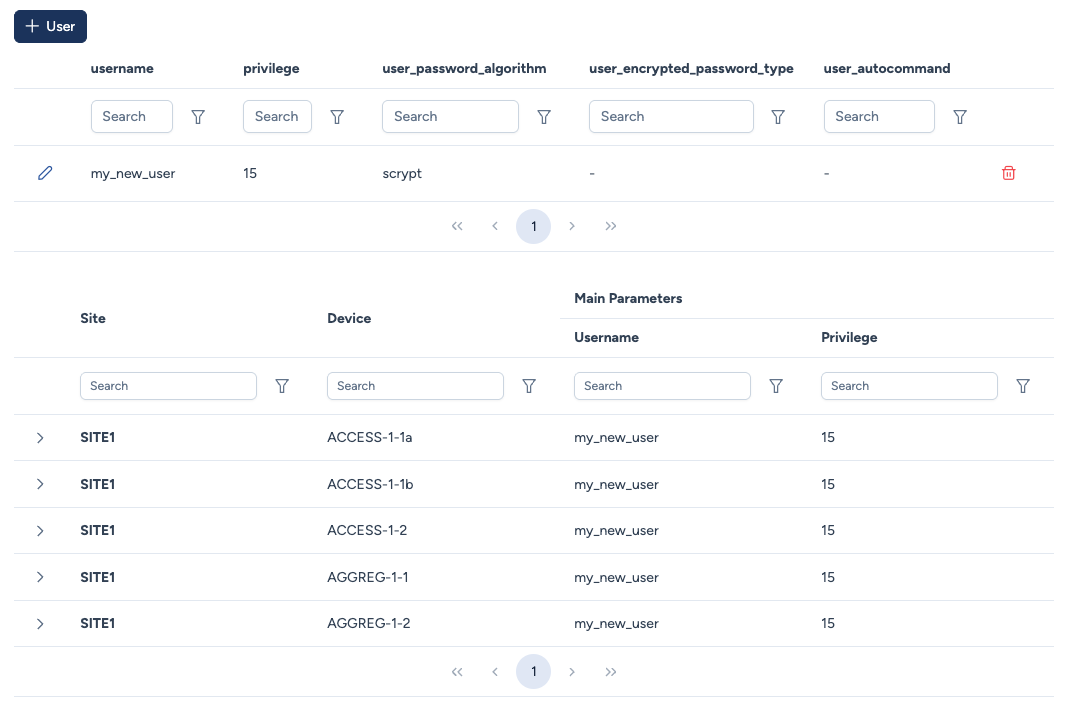
Pre-configured Services - Definitions
The top section acts as your catalog. Creating a user here does not immediately deploy it to the network; it simply defines a standard template available for deployment.
Vendor Specificity: Cisco IOS Focus Currently, the user definition module is optimized for Cisco IOS/IOS-XE.
- Privilege Levels: Avalon uses Cisco's standard numerical scale (0-15).
- Password Encryption: Avalon handles standard Cisco secret types (Type 0, Type 5, Type 9 scrypt, etc.).
Roadmap: Multi-Vendor Abstraction
As Avalon widens its coverage, this menu will introduce Abstraction Templates.
Instead of defining a "Privilege 15", you will define a logical role (e.g., "Network Admin") which Avalon will automatically translate into the correct vendor syntax during deployment:
- Cisco:
privilege 15 - Aruba CX:
group administrators - Juniper:
class super-user
Creating a User Template
Clicking the + User button opens the configuration modal.
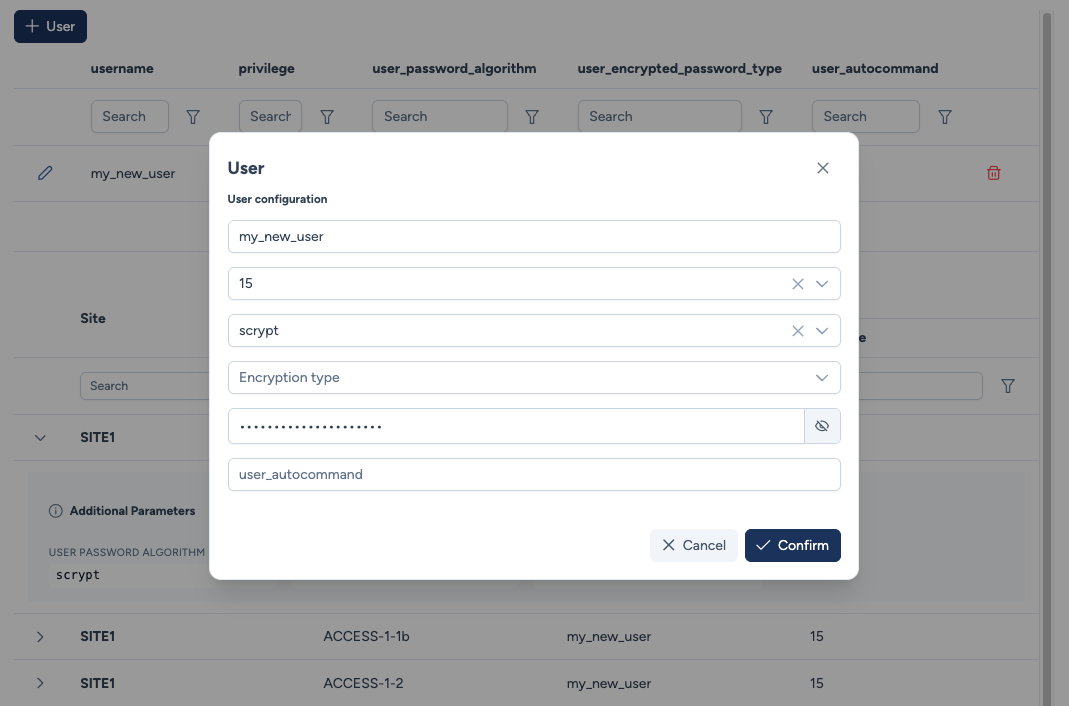
Configuration parameters:
- Username: The user's name (e.g.,
my_new_user). - Privilege: Defines the user's privilege level (e.g.,
15). - User Password Algorithm: Selects the hashing method (e.g.,
scrypt,sha256). - Password: The strictly confidential string used for authentication.
- User Autocommand: (Optional) A command to be executed automatically upon this user's login.
Security Note
For security reasons, passwords are never displayed in clear text in inventory tables or transactions.
Supported platforms
This service relies on a configuration template written for each system.
| Platform | Create an account | Change the password |
|---|---|---|
| Cisco IOS and IOS-XE | yes | yes |
| Cisco NX-OS | yes | |
| Aruba OS-CX | yes | yes |
On a device running another platform, the service is not offered.
Viewing service instances
To maintain a readable interface, the service instances table displays only essential information. However, you can access the details of each instance by clicking the arrow icon on the left of any instance.