Scheduled services
The Scheduled Services module allows you to automate network operations by planning them in advance. Whether for a one-time intervention or a recurring task (e.g., weekly backups), the scheduler orchestrates these operations.
Dashboard overview
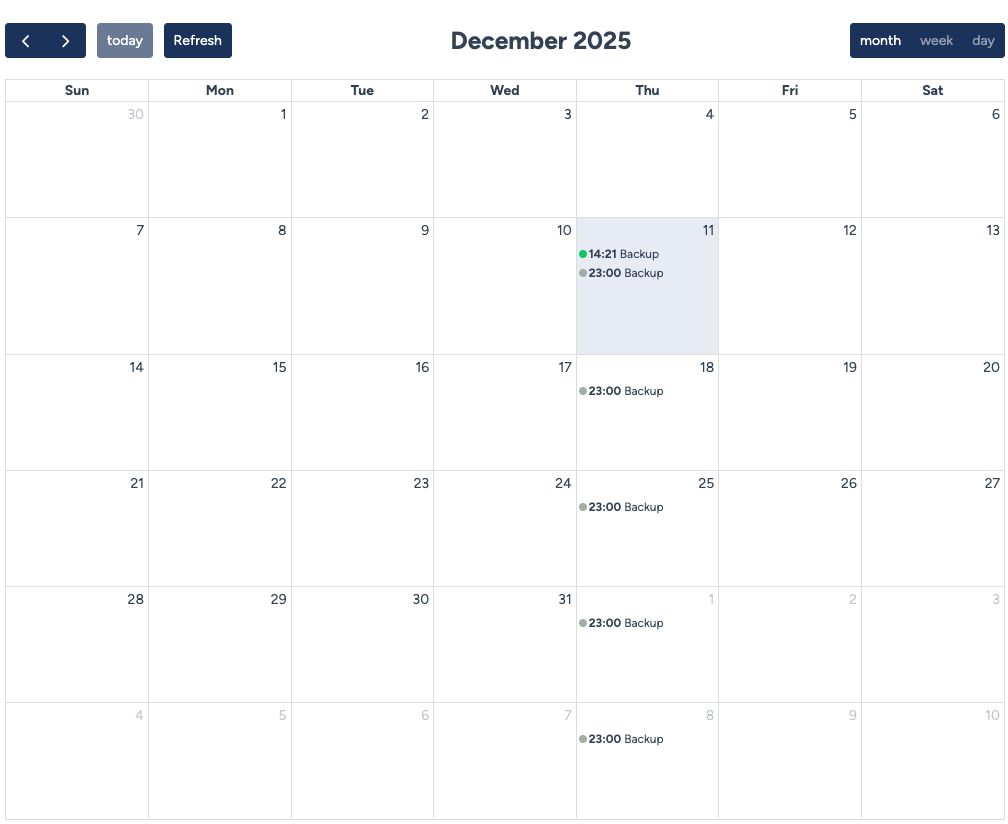
The calendar provides a visual status of your operations at a glance.
-
Future Events: pending Scheduled tasks not yet executed. You can edit or delete them.
-
Ongoing Events: ongoing Tasks running.
-
Completed Events: The status reflects the transaction result:
-
success All devices were processed successfully.
-
partial success At least one device succeeded, others failed.
-
failed The service failed on all targets.
-
Connection credentials
Scheduled tasks are not interactive sessions. They always use a service account to connect to devices. See the credential resolution cascade for details.
Scheduling a new service
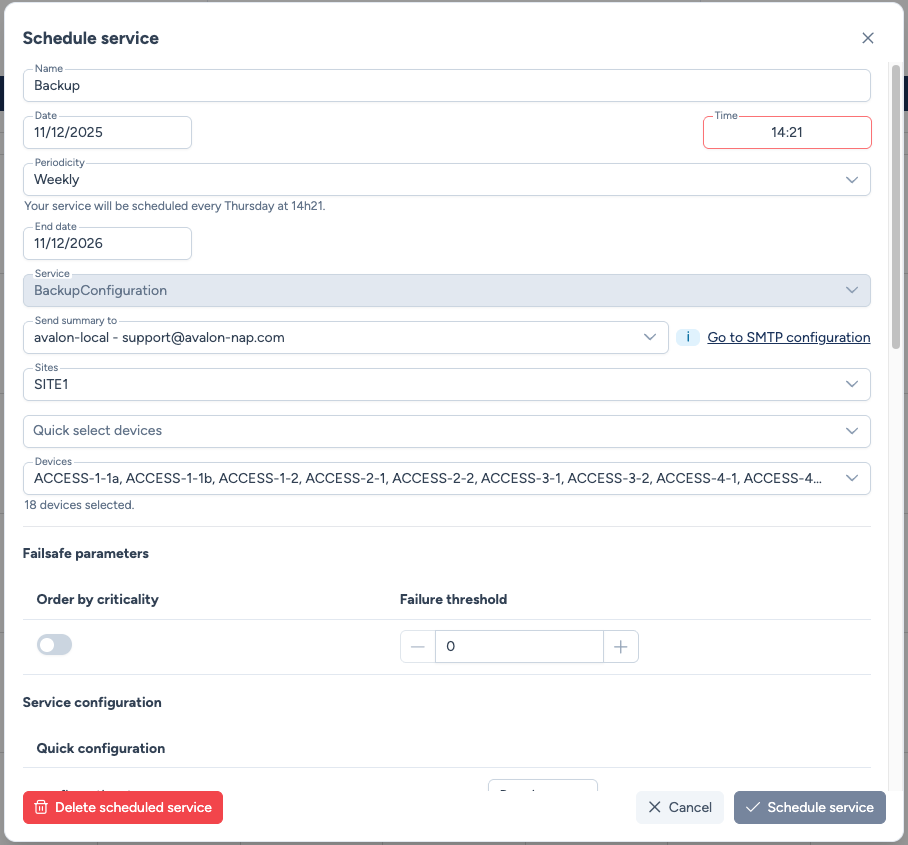
To create a task, click on a date in the calendar or use the Schedule Service button. The configuration interface guides you through several steps.
Step 1: Definition & Timing
- Name: The task name (e.g., "Weekly Backup Site Paris").
- Periodicity:
- One-time: Runs once at the specific date/time.
- Recurring (Daily/Weekly/Monthly): Automatically generates events for the next 12 months.
- Service: Select the operation to perform from the available categories.
- Custom Services are also available if they have been flagged as "Schedulable".
Step 2: Reporting (SMTP)
Avalon automatically sends a summary email upon completion if configured.
- Send Summary To: Select the recipient list.
- Prerequisite: An SMTP server must be configured in Administration.
Step 3: Scope Selection
Define on which equipment the service will run.
- Select Sites: Filter devices by location.
- Select Devices: Use the Quick Select dropdown to filter by Type, Building, or Redundancy Group, or pick devices individually.
Step 4: Parameter Configuration
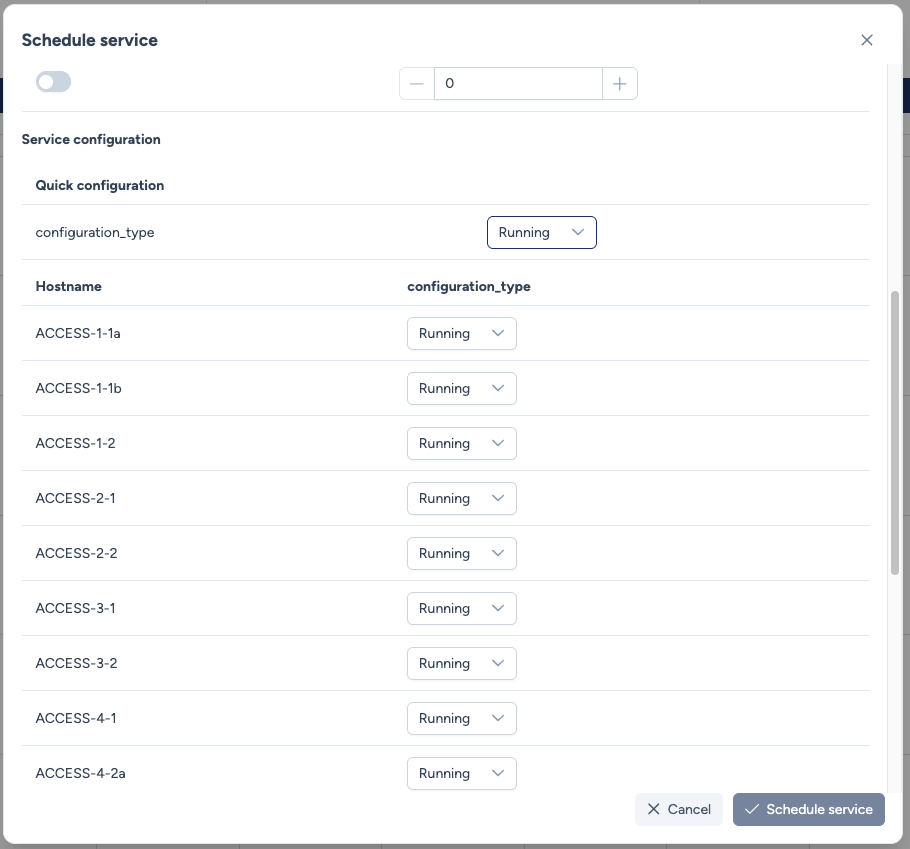
This step adapts to the service selected. You can define parameters globally or specifically per device.
- Quick Config: Sets the parameter value for all selected devices.
- Per-Device Override: You can change the parameter for a specific device if needed (e.g.,
runningconfig for most, butstartupfor one specific router).
Monitoring execution
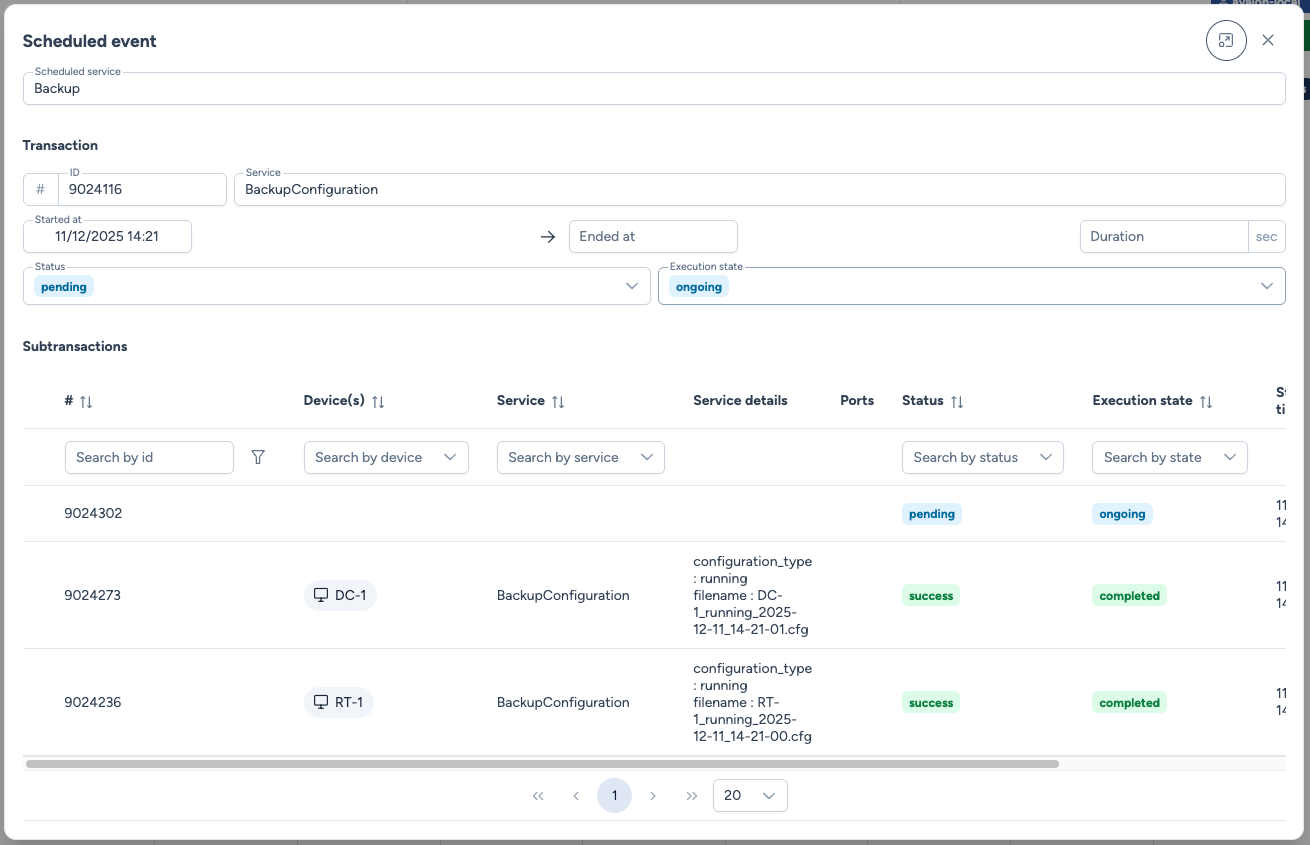
Once the scheduled time is reached, the event status changes to Running. You can click on the event to view the live transaction.
Lifecycle management
- Edit: As long as an event has not started (status Pending), you can click on it to modify any parameter.
- Delete: You can delete a future event.
- For recurring tasks, deleting an instance removes the future schedule but keeps the history of past executions.
Explicit feedback, since 1.4.1
Scheduling, editing and deleting a scheduled service each raise a confirmation or failure notification. On an error the dialog no longer closes: you keep what you typed and can fix it, instead of losing it without knowing whether the save happened.
Traceability & Reporting
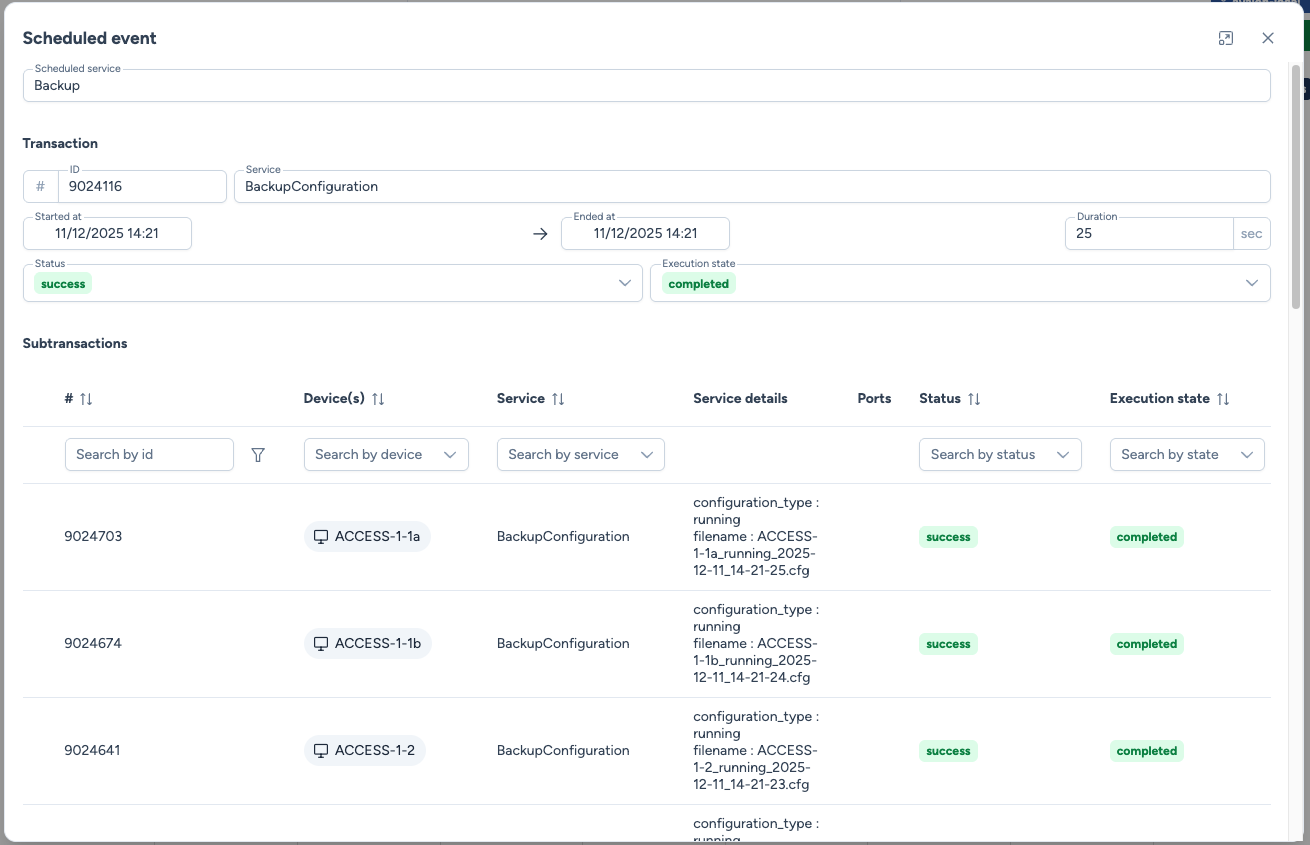
After execution, the event becomes a read-only Transaction.
Transaction details
Clicking on a completed event opens the detailed report, showing the status for each device.
Email reporting
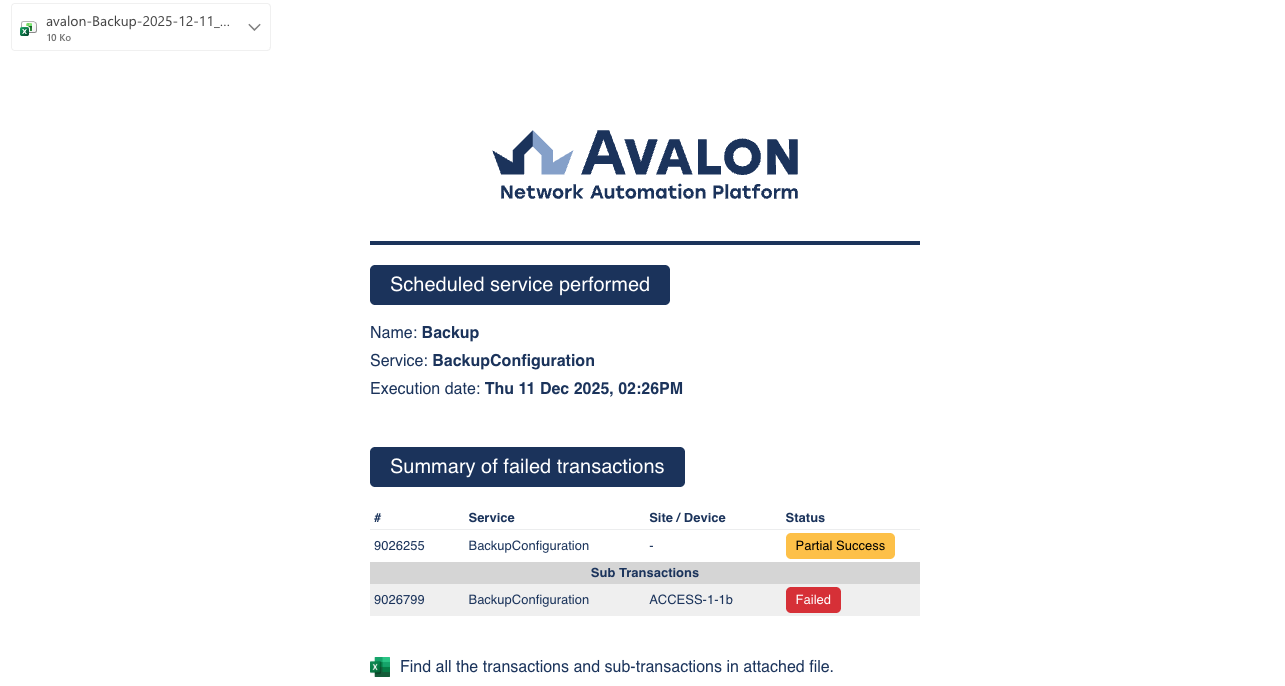
If configured, Avalon sends an email report immediately after the workflow ends.
- Global Status: Instant visibility on the overall success rate.
- Attachments: The email includes an Excel file containing the granular details of each sub-transaction.