Tenants
A tenant is a logical container that allows you to create management scopes for your networks.
There are two main goals:
- Allow selected users to have a complete view of the network and restrict access for others.
- Allow MSPs to manage several customers' networks independently within the same Avalon instance.
Not all resources are dedicated to a tenant. Here is a list of per-resource scopes:
| Resources | Scope |
|---|---|
| Sites | Single-Tenant |
| Devices and related network services | Single-Tenant |
| ConfigBackup server | Multi-Tenant |
| Custom services | Global |
| SMTP server | Global |
| LDAP server | Global |
| Service accounts | Global |
| Vendor | Global |
| Device types | Global |
| Device families | Global |
| Device models | Global |
| Device images | Global |
| Interfaces list | Global |
Note
We are open to changes in some resource scopes if needed. Please contact our team.
Configuration parameters
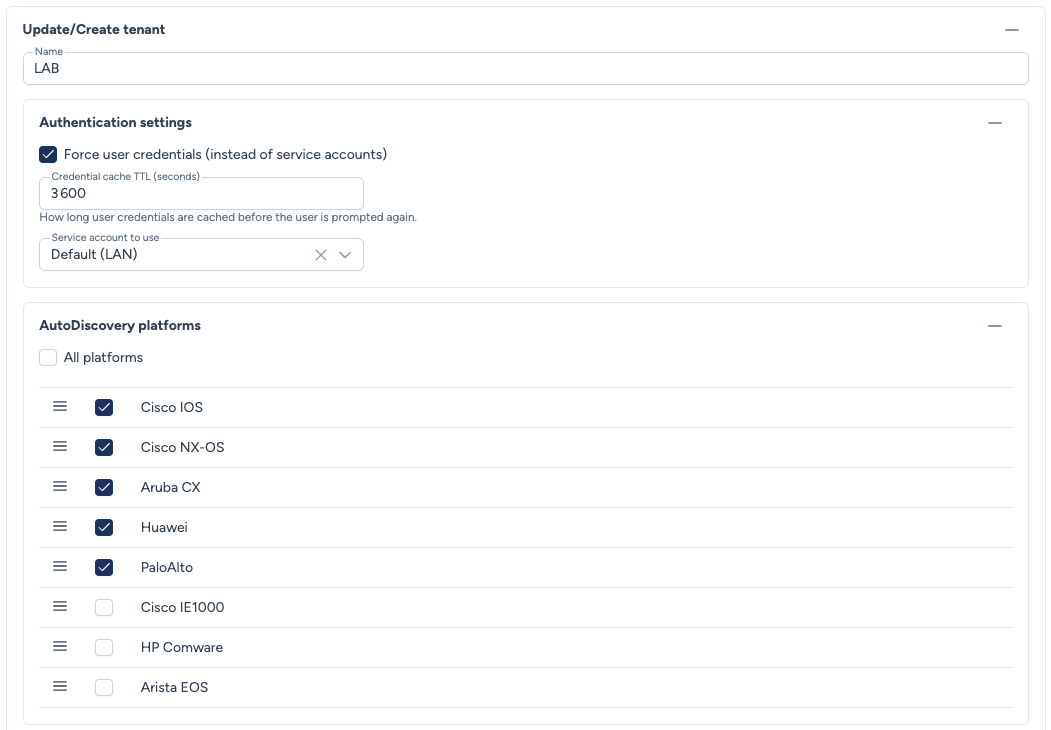
- Name: A mandatory name for your tenant.
Authentication settings
Configure here how Avalon authenticates to the tenant's network devices.
- Force user credentials (instead of service accounts): Determines when Avalon uses the logged-in user's credentials instead of a service account:
- Always: All interactive actions (WebSSH, services, data gathering, autodiscovery) use user credentials. The credentials prompt always appears, even if the targeted device types have bypass enabled. The backend then determines for each device whether to use the entered credentials or the device type SA.
- WebSSH Only: Only WebSSH uses user credentials. Deployments and autodiscovery use the service account.
- WebSSH OTP: Credentials are single-use: they are deleted immediately after being used by WebSSH. The user is prompted to re-enter credentials for each WebSSH session. This mode is designed for environments with OTP authentication where credentials cannot be reused. Deployments and autodiscovery use the service account.
- Never: The service account is always used, regardless of the action.
- Credential cache TTL (seconds): Duration (in seconds) for which user credentials are kept in cache. Applies to the Always and WebSSH Only modes. Not applicable to WebSSH OTP mode (single-use credentials). Once the TTL expires, the user is prompted again. Default value: 3600 (1 hour).
- Service account to use: The service account to use for this tenant. Service accounts are managed from the Service Accounts page.
Worth knowing
The authentication mode cannot be changed while a transaction is in progress on the tenant.
Migration
Previous settings are automatically migrated to the new mode:
- User account for WebSSH (1.3.3) → WebSSH Only
- Force user credentials enabled (1.3.5) → WebSSH Only
- Force user credentials disabled (1.3.5) → Never
See the Device connection page for the full credential resolution details (cascade, prompt, TTL, scheduled tasks).
Source(s) of Truth (SoT) configuration
The Site AutoDiscovery feature requires a devices inventory.
Avalon supports several SoT. You can configure as many as you want but only one will be used during an AutoDiscovery process.
Netbox configuration
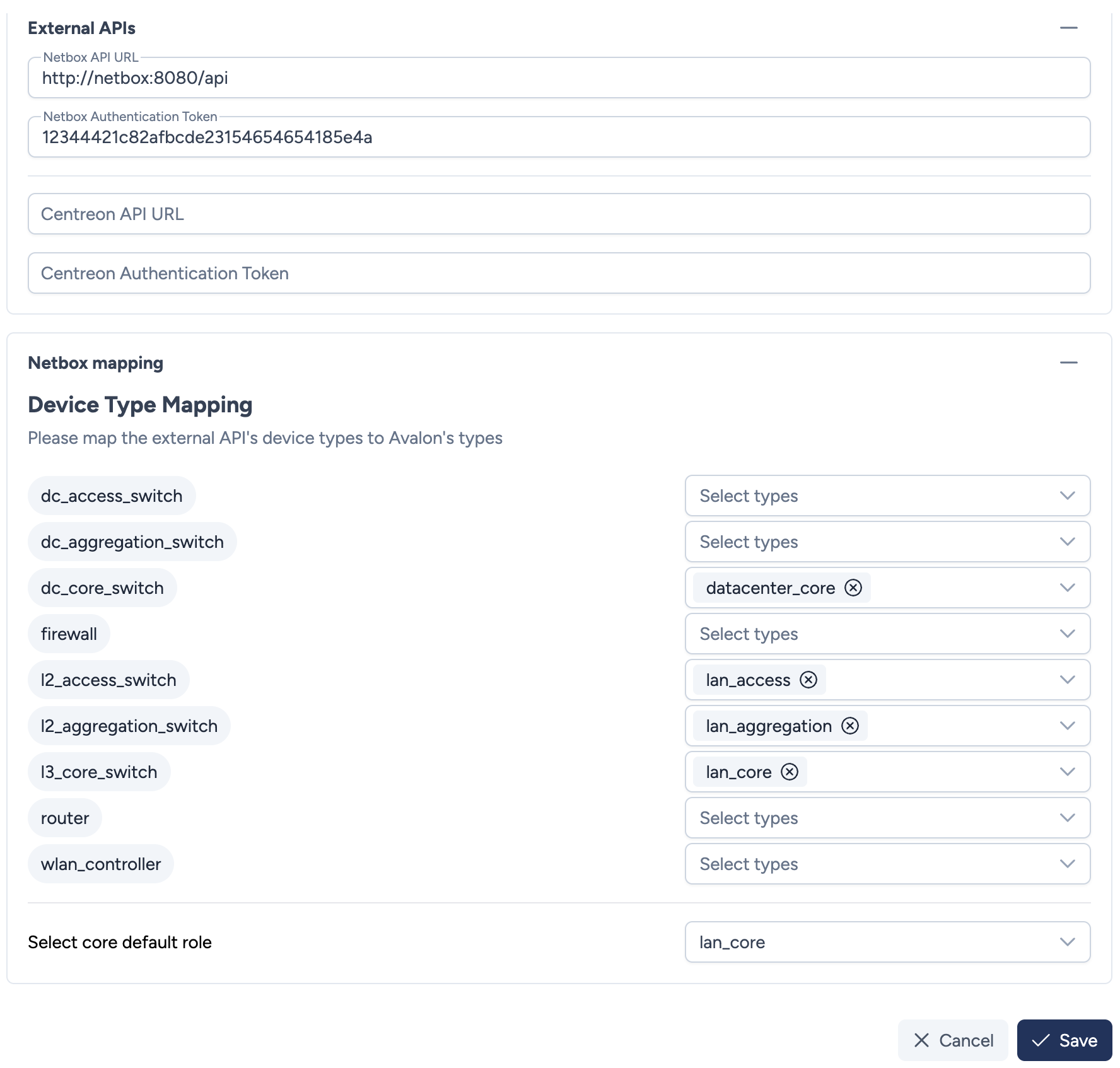
Our Netbox integration requires the following parameters:
- Netbox API URL: The full URL to access your Netbox instance API.
- Netbox Token: The authentication token generated in Netbox.
Mandatory input
When you create a site later on in Avalon, you must use the same name (not case sensitive) as defined in Netbox because it will be used in the API call.
Netbox allowed IP addresses
Be sure to allow Avalon Virtual Appliance IP address to access Netbox.
Mapping logic:
The mapping only appears when editing the tenant
The mapping panel is not present in the tenant creation form, and filling in the URL and token then validating the connection does not make it appear there. Save the tenant, then reopen it with the pencil icon: the panel is there.
Once the tenant is saved and both mandatory information configured, you will be able to create a mapping between Avalon's device types and Netbox's device roles:
- This mapping will be applied automatically when the AutoDiscovery process uses Netbox as its inventory source.
- The mapping will allow Avalon to discover only the devices that you want to manage (e.g., excluding printers, firewalls, load-balancers, WiFi APs, etc.).
- The mapping is 1:N meaning that you can map an Avalon device type to several Netbox roles.
- You shall also define a default Netbox role for the core device(s) of your sites. We use the core devices to center the network topology in the site diagram.
Device types
Avalon device types are configurable from the Device Types page.
Centreon configuration
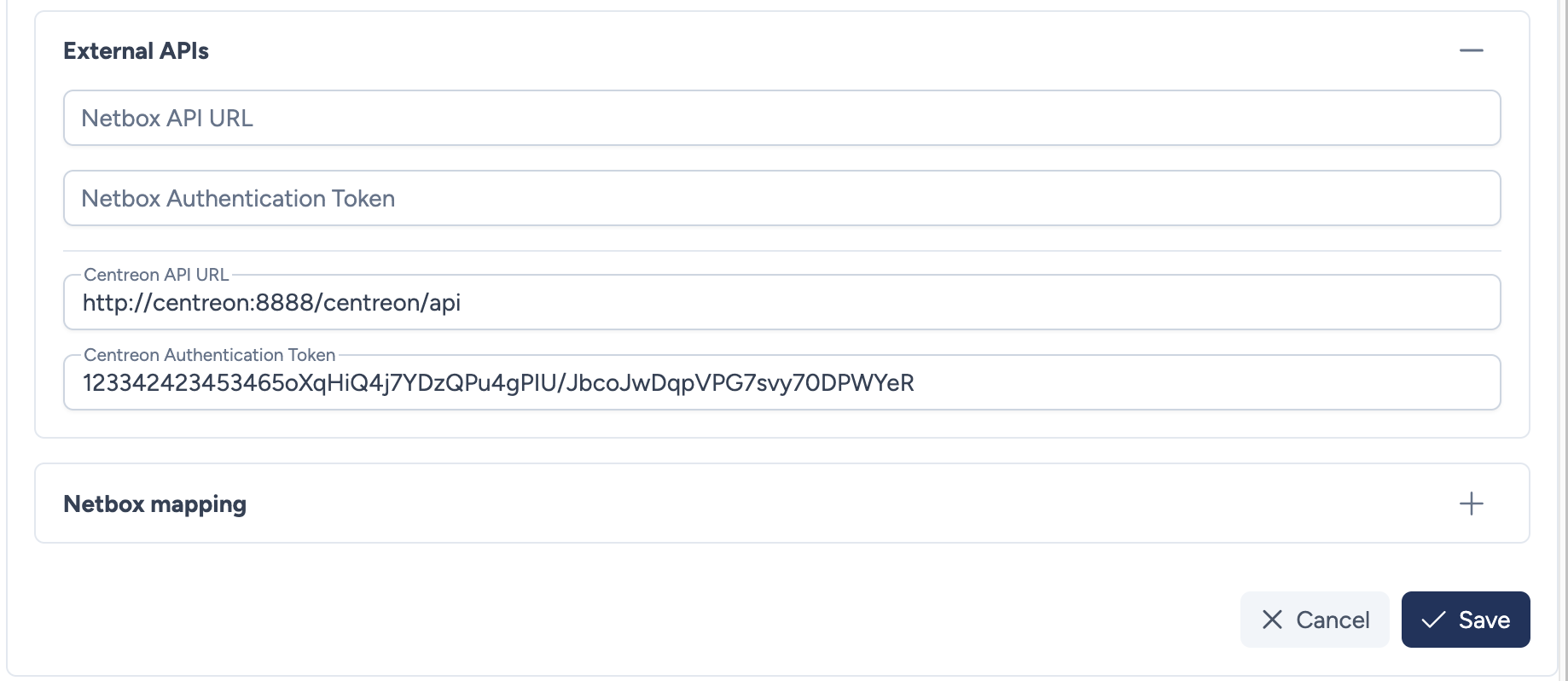
Our Centreon integration requires the following parameters:
- Centreon API URL: The full URL to access your Centreon instance API.
- Centreon Token: The authentication token generated in Centreon.
Mandatory input
When you create a site later on in Avalon, you must use the same name (not case sensitive) as defined in Centreon because it will be used in the API call.
Roadmap
There is no mapping yet between Avalon's device type and Centreon data model.
AutoDiscovery platforms configuration
During the AutoDiscovery process, Avalon attempts to identify each device's type by trying different drivers (platforms) in sequence. This section allows you to select and order the platforms used for discovery at the tenant level.
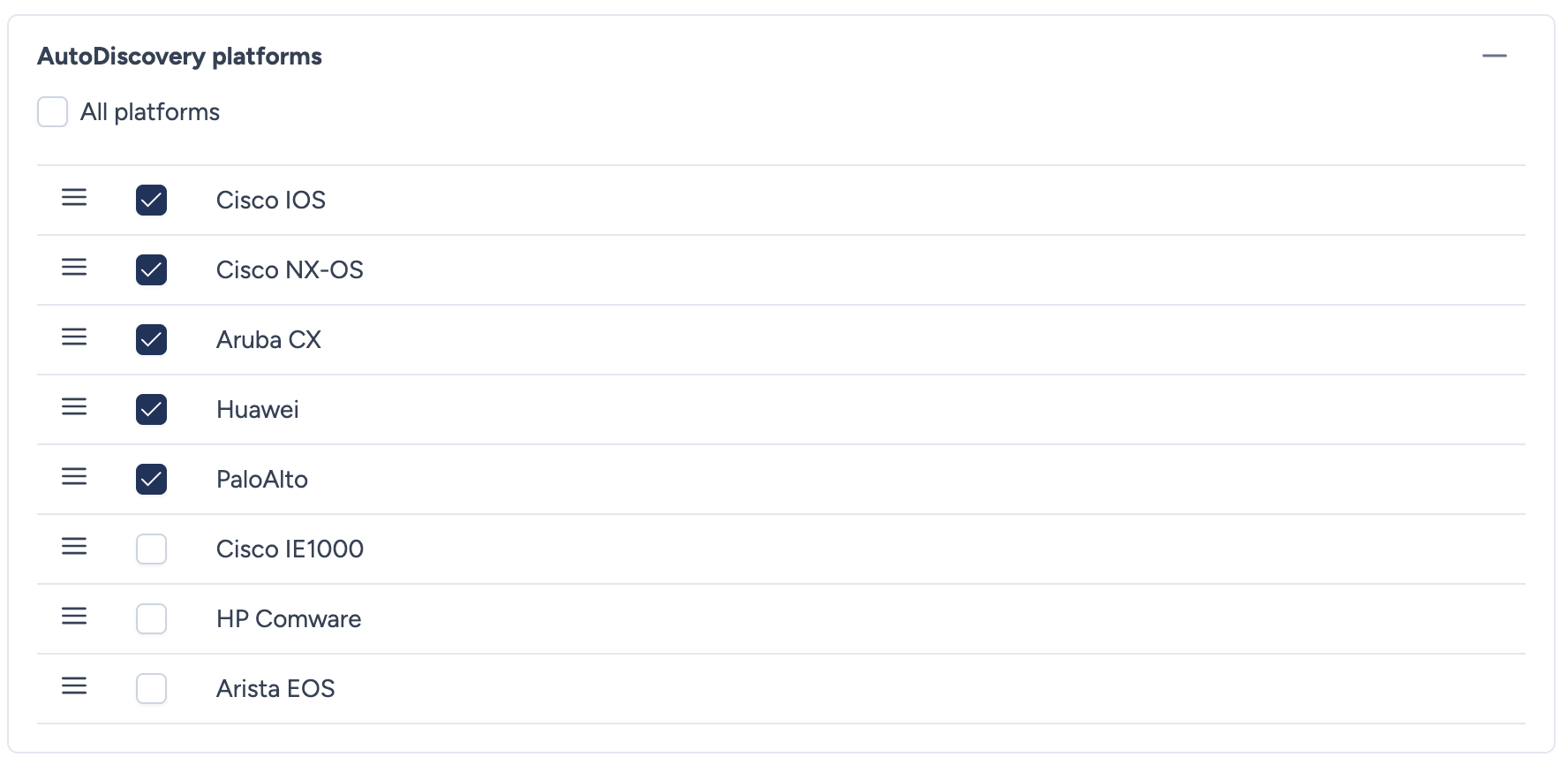
Platform selection
- Check All platforms to enable all platforms.
- Or check individually only the platforms relevant to your environment.
Disable unused platforms
Uncheck platforms that do not match your network environment. For example, if you do not have Palo Alto firewalls, disable that platform to avoid unnecessary connection attempts.
Ordering
The platform order determines the sequence in which Avalon attempts to identify each device. Use the drag handles (☰) to reorder the list.
Optimize discovery order
Place the most common driver in your environment first (e.g., Cisco IOS if your network is predominantly Cisco) and the least common ones last. This significantly speeds up the discovery process as Avalon will find the right driver faster.
Report branding
You can attach a logo to your tenant to brand the compliance PDF reports. The logo appears at the top right of every report generated from the Audit page for that tenant.
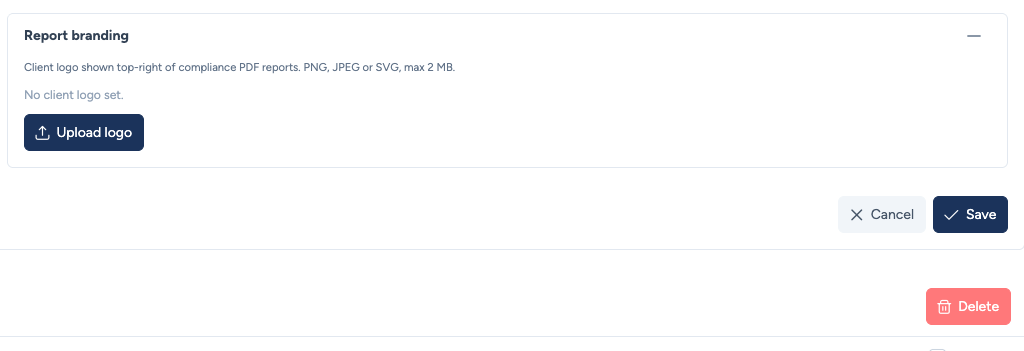
The Report branding panel is only available when editing an existing tenant, not when creating one.
- Upload logo: Pick the file to use. Accepted formats: PNG, JPEG or SVG, maximum size 2 MB.
- Once the logo is saved, a preview is shown. Use Remove to drop it and go back to reports without a logo.
One logo per tenant
The logo belongs to the tenant: each managed customer, for an MSP for instance, can have its own. Every compliance report of that tenant automatically picks up the logo configured here.