Interface lists
The Interface Lists section defines the physical port templates associated with device models.
While Avalon automatically discovers and populates interface lists for managed devices, this menu is critical for onboarding Static Devices and ZTP. To manually create a model (e.g., an ISP router, a security device outside your control), you must define its interfaces so it can be connected on the map.
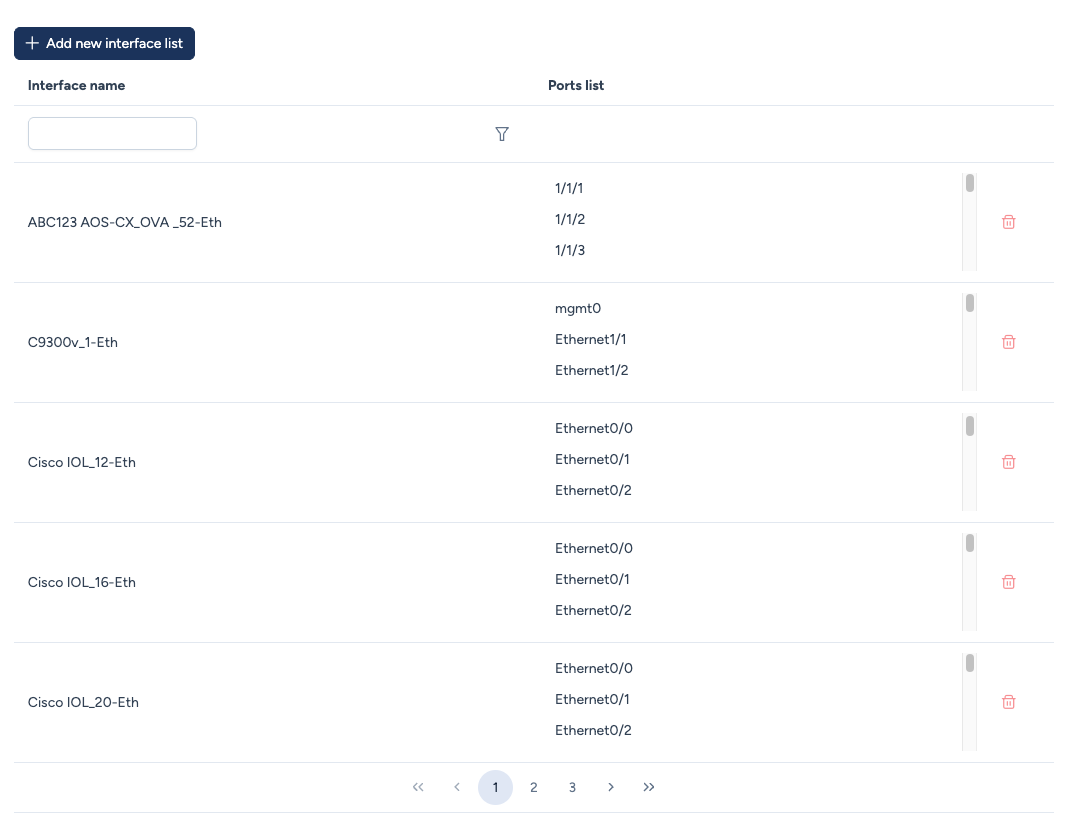
Understanding the logic
An Interface List is not a flat text file; it is a generator. It uses a hierarchical logic to build ranges of interface names automatically:
- Interface List: The container (e.g., "Cisco-48Ge-4Te").
- Sublists: Groups of interfaces sharing the same type (e.g., "GigabitEthernet Ports" vs "Uplink Ports").
- Modules: The numerical segments that make up the interface numbering (e.g., Slot number, Port number).
Creating a new list
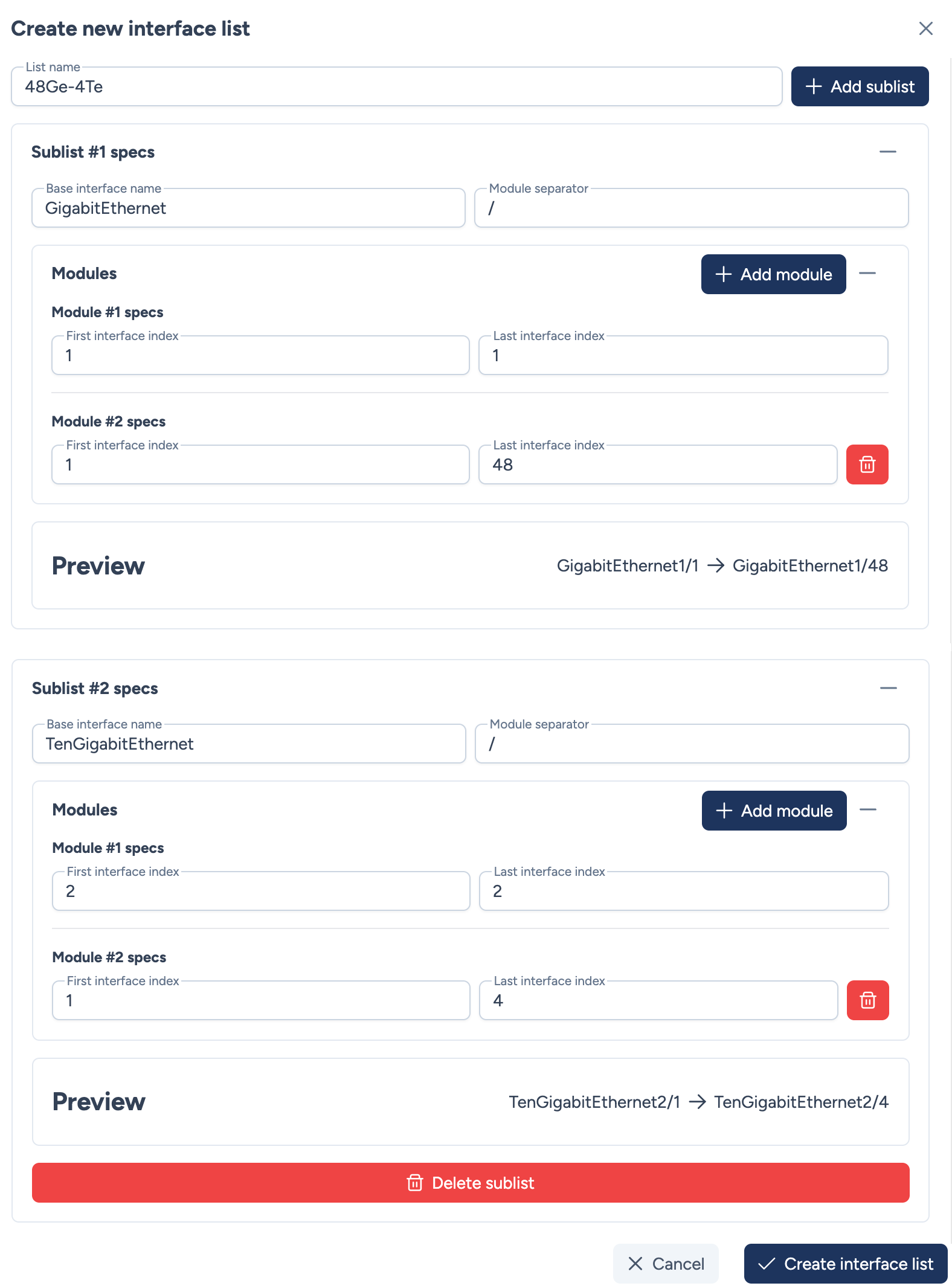
When creating a list, you define one or more Sublists to cover all ports on the equipment.
Configuration details
1. Base Configuration
- Base interface name: The prefix string (e.g.,
GigabitEthernet,Eth,ge-). - Module separator: The character used to separate numbers from each module (typically
/for Cisco or.for Juniper).
2. Modules (Numerical Segments)
A "Module" represents a number in the interface name. You can chain multiple modules to match the hardware syntax (e.g., 1/0/1 requires 3 modules).
- Fixed Segment: To define a static number (e.g., Slot 1), set the First index and Last index to the same value (e.g.,
1to1). - Range Segment: To define a range (e.g., Ports 1 to 48), set the First index to
1and Last index to48.
Example
First sublist with 48 GigabitEthernet interfaces
Target: GigabitEthernet1/1 to GigabitEthernet1/48
- Base Name:
GigabitEthernet - Separator:
/ - Module #1 (Slot): Start
1/ End1 - Module #2 (Port): Start
1/ End48
Second sublist for TenGigabitEthernet interfaces
Target: TenGigabitEthernet2/1 to TenGigabitEthernet2/4
- Base Name:
TenGigabitEthernet - Separator:
/ - Module #1 (Slot): Start
2/ End2 - Module #2 (Port): Start
1/ End4
Preview Feature: As you configure the modules, the Preview line at the bottom updates in real-time. Always check this to ensure the generated range matches the device's hardware.