Sites
Lists all network sites in the selected tenant with their status, inventory, and export options.
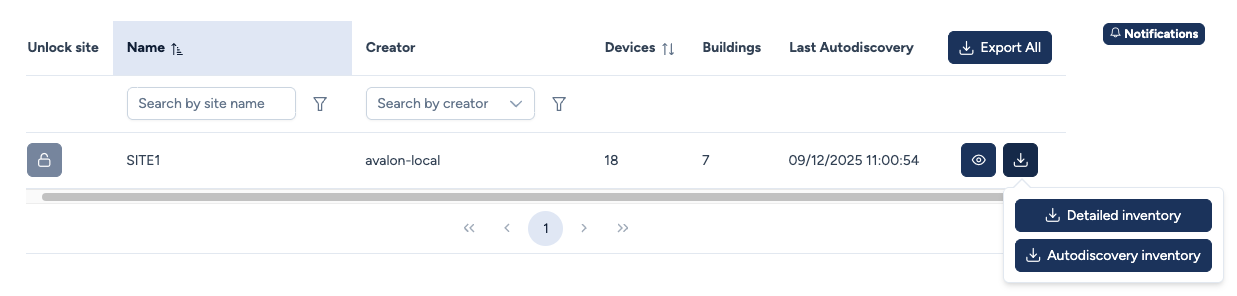
Site list details
The table provides a summary of each site's footprint:
- Unlock site: Indicates if the site is available. If a lock appears, a process is running (see Handling locked sites below).
- Name: The unique identifier of the site.
- Creator: The user who originally created the site.
- Devices: The total number of network assets managed in this site.
- Physical Devices: The number of physical devices (stackwise members are counted individually). This data is included in the CSV export.
- Buildings: The number of physical locations defined.
- Last Autodiscovery: The timestamp of the last successful synchronization.
Filtering: You can use the Search bars at the top of each column to filter the list by site name, creator, or other criteria.
Actions
Global Actions:
- Export All: Downloads a CSV containing the inventory of all sites in the table (includes a "Site" column to distinguish assets).
Row Actions:
- eye icon Opens the site dashboard with detailed device inventory and topology map.
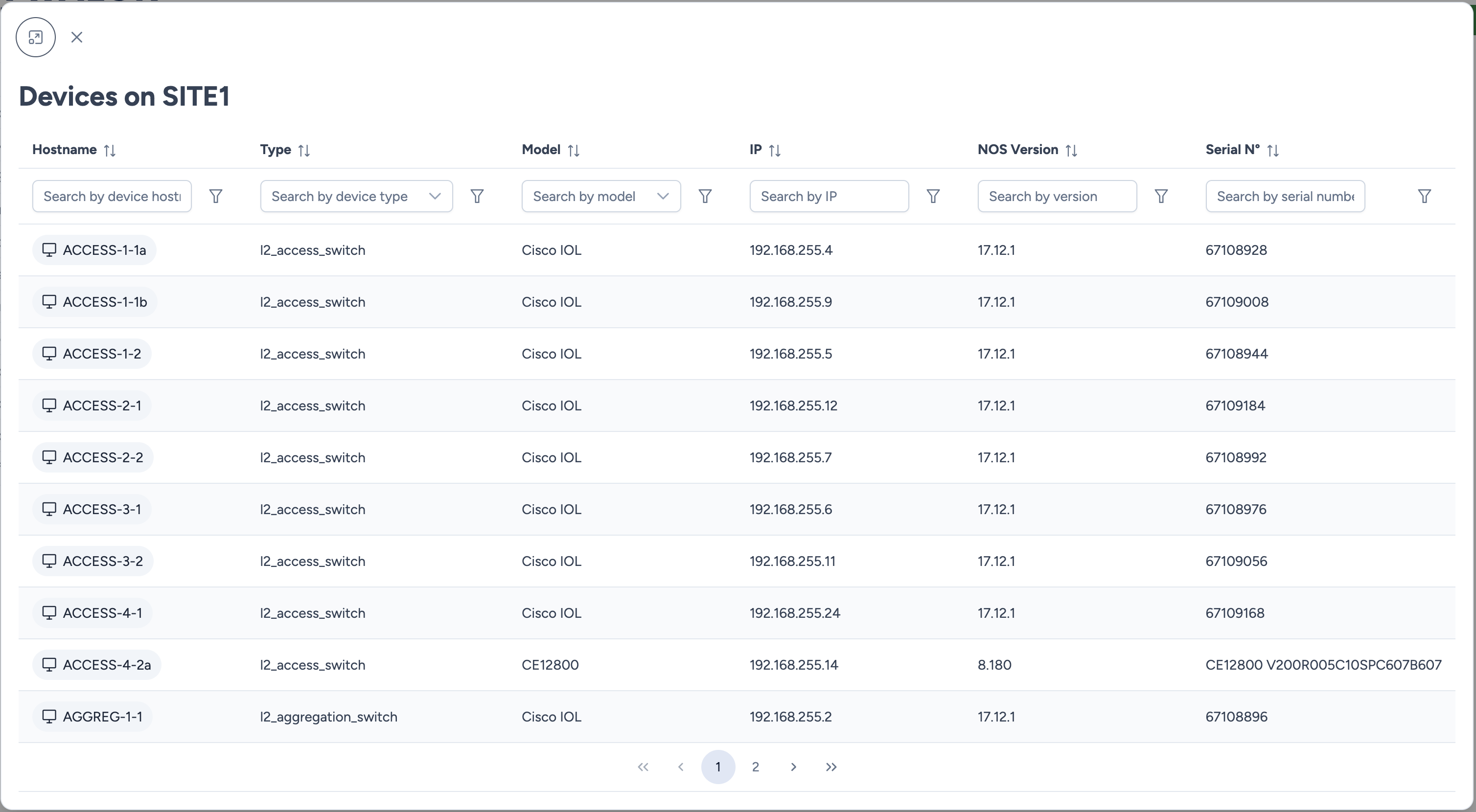
- download icon Opens a menu with two export formats:
- Detailed inventory: Complete CSV with operational data (Versions, Serials, IPs, etc.).
- Autodiscovery inventory: CSV formatted for the AutoDiscovery engine (for re-import or backup).
Handling locked sites
Avalon implements a locking mechanism to ensure data integrity during critical operations.
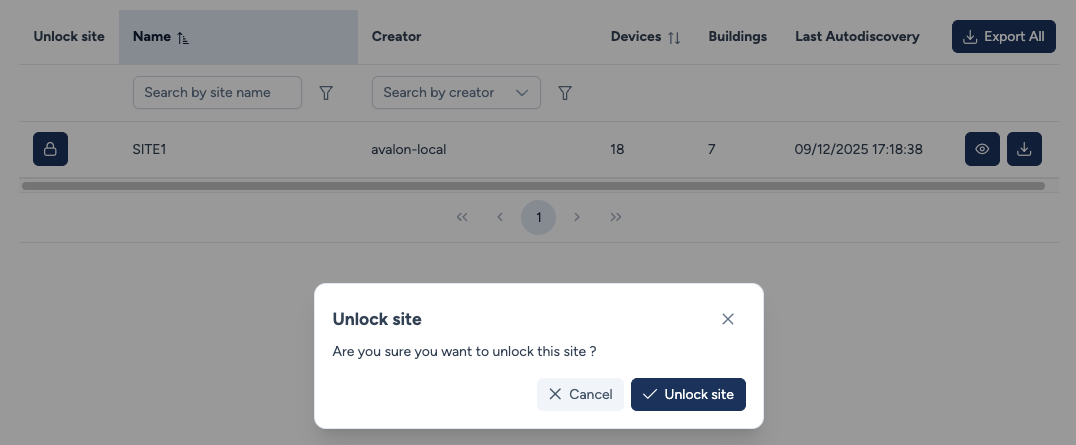
Why is a site locked?
When an AutoDiscovery process is running, the site is automatically locked. This is a safety measure to prevent:
- Concurrent Processes: Launching a second discovery while one is already active.
- Data Corruption: Modifying the map (e.g., moving devices) while the engine is updating the topology.
- Consequence: The "Edit" mode (pencil icon) inside the site view is disabled while the lock is active.
Force Unlock:
Under normal circumstances, the lock disappears automatically once the discovery finishes. However, if an unexpected error occurs during the process (e.g., server crash), the site may remain stuck in a locked state.
- Action: Click the Lock icon in the first column.
- Result: This manually releases the lock, restoring access to the AutoDiscovery launcher and map editing tools.
Use with caution
Only use the Force Unlock feature if you are certain that no background process is currently running (e.g., if the lock has persisted for an abnormally long time without progress).