Devices
Provides a complete list of all network devices managed within the currently selected tenant, across all sites.
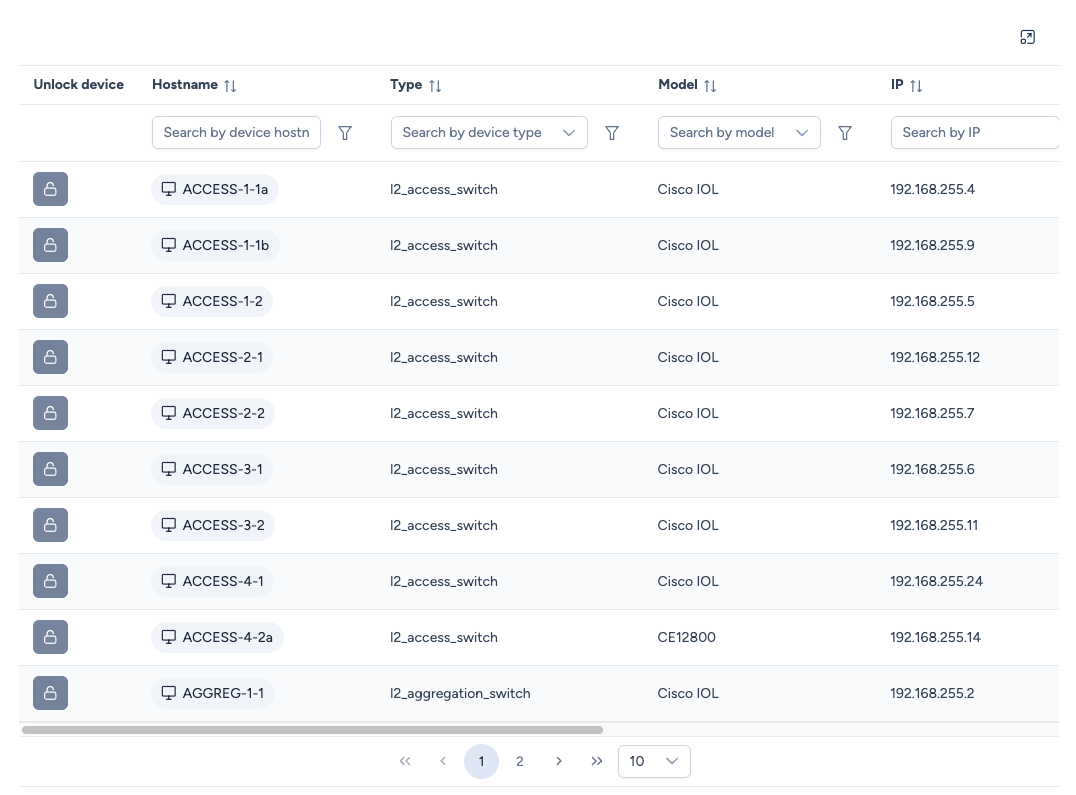
Device list details
The table displays essential data for each device:
- Unlock device: Displays a lock icon if the device is currently undergoing a critical operation (see Device Locking below).
- Hostname: The device name.
- WebSSH Access: Clicking the hostname automatically opens a WebSSH client session in a modal.
- Type: The internal Avalon device type (e.g.,
l2_access_switch,router). - Model: The hardware model definition (e.g.,
Aruba CX 8325). - IP: The management IP address.
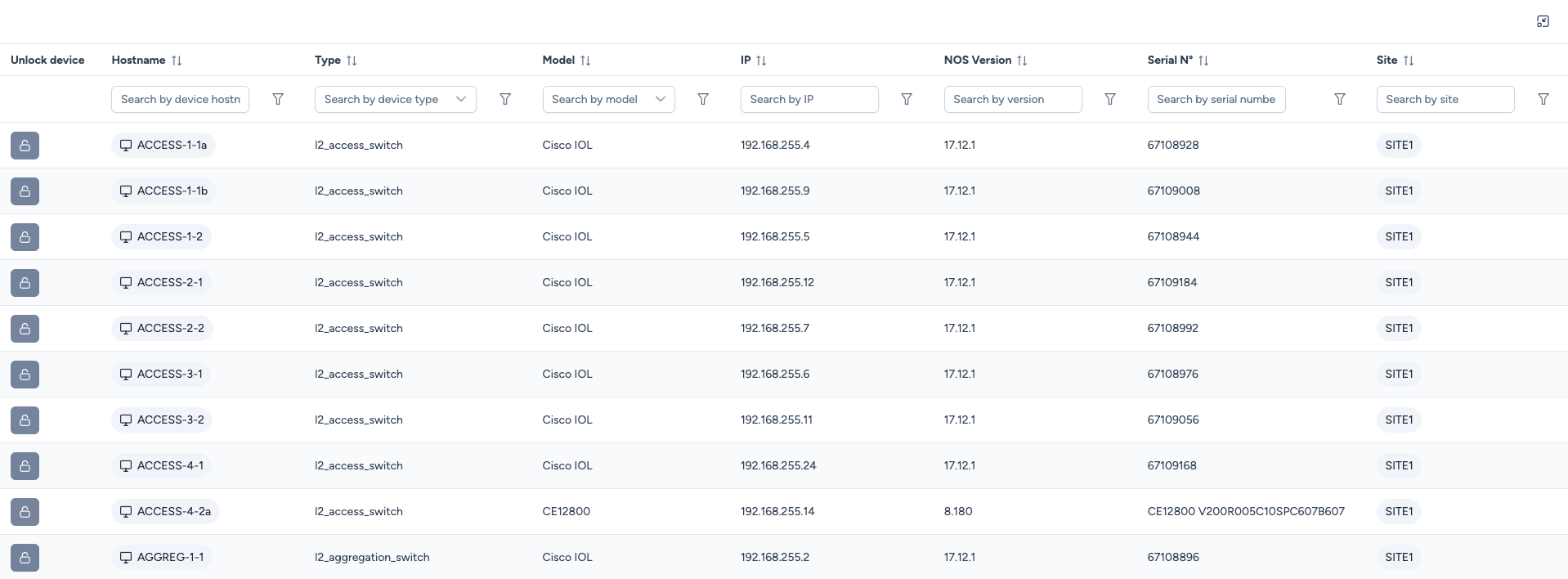
- NOS Version: The currently running operating system version.
- Serial N° (Serial Number): The serial number. For devices composed of multiple members (stackwise, Stackwise Virtual, VSS), the serial numbers of all members are displayed under the parent device's serial.
- Site: The site the device belongs to.
Viewing Options
Given the density of information, you can adjust the display mode to view all columns comfortably.
- Full Screen Mode: Click the Expand icon (top-right corner) to maximize the table.
Deleting a device
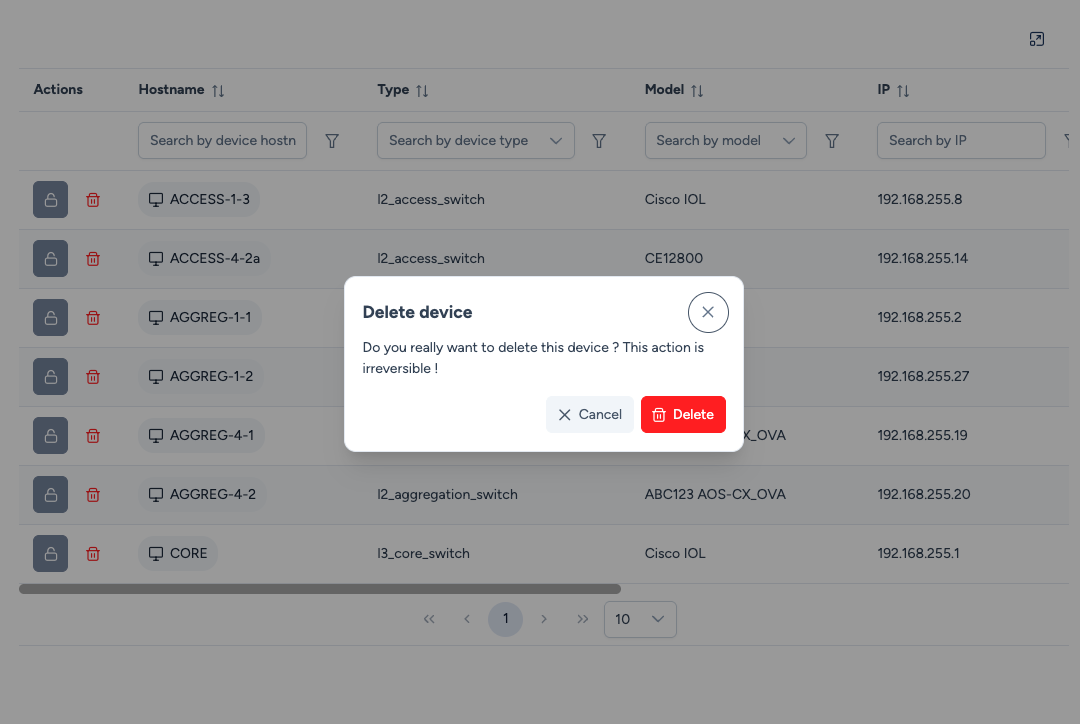
The trash icon, in the actions column, removes a device from the inventory. It asks for confirmation before acting.
The action requires the device deletion permission. Without it, the icon is not shown.
Deletion is permanent
A deleted device does not come back on its own. It will only reappear at the next discovery of the site, and only if Avalon finds it again.
A device with no site is deleted from its map
Some devices are attached to no site, a virtual chassis that lost its members for instance. The inventory tells you so and points you to the map, which alone has the context needed.
What deletion takes with it. The device is never removed on its own, otherwise it would leave behind references to an object that no longer exists:
- its interfaces, VLANs, aggregates and VRFs;
- its links to other devices;
- its members, if it is a virtual chassis or a stack;
- its attachment to a building;
- its presence in the scheduled services that targeted it;
- the non-managed neighbors it alone could see. A neighbor shared with another device of the site is kept.
A scheduled service has its scope reduced
If the deleted device was the target of a scheduled service, that service stays in place but now covers only the remaining devices. Check your schedules after deleting a device they targeted.
Deletion runs in the background. On a device carrying many interfaces it may take a few seconds before the list refreshes.
Device locking and upgrades
Avalon protects devices during sensitive maintenance operations by applying a Lock.
Why is a device locked?
A device enters a locked state automatically when a Firmware/OS operation is initiated via Avalon. This includes:
- Upload of a new NOS image.
- Activation of a stored image.
- Upgrade (The complete Upload + Activation process).
Force Unlock:
The lock is normally released automatically once the operation completes (success or failure). However, if a process hangs or crashes, the device may remain locked, preventing further actions.
- Action: Click the Lock icon in the first column.
- Result: This manually releases the lock.
Check process status first
Before forcing an unlock, ensure no upgrade process is running by checking the Transactions page.