Transactions
The Transactions module records every operation performed on the network, whether scheduled or triggered manually.
This ensures complete traceability of changes, offering a granular view from the global intent down to the specific commands sent to a device.

Transaction author, since 1.4.0
An Author column shows which user triggered each transaction. It is filterable like the others, and the author is also included in the Excel export.
Anatomy of a Transaction
A Transaction follows a hierarchical structure:
- Parent Transaction: Represents the global intent (e.g., "Deploy Syslog Server"). It aggregates the overall result.
- Sub-transactions: Represent the individual action performed on each specific device.
Status Types:
- success All devices were processed without error.
- partial_success At least one device succeeded, but others failed.
- failed The operation failed on all devices.
The tracking card on the network map
While a service is deploying, a tracking card appears on the site map and shows live progress.
The close cross on that card closes the card only. The deployment carries on, the site stays locked, and you find the progress again in the Transactions tab.
This behavior changed in 1.4.1
Previously that cross ended the transaction and released the site while the deployment was still running on the devices. Both actions remain available, but only where they are explicit:
- stopping the transaction from the Transactions tab;
- unlocking the site from the padlock, in the site inventory.
A card whose operation has finished disappears on its own after ten seconds.
Investigating failures
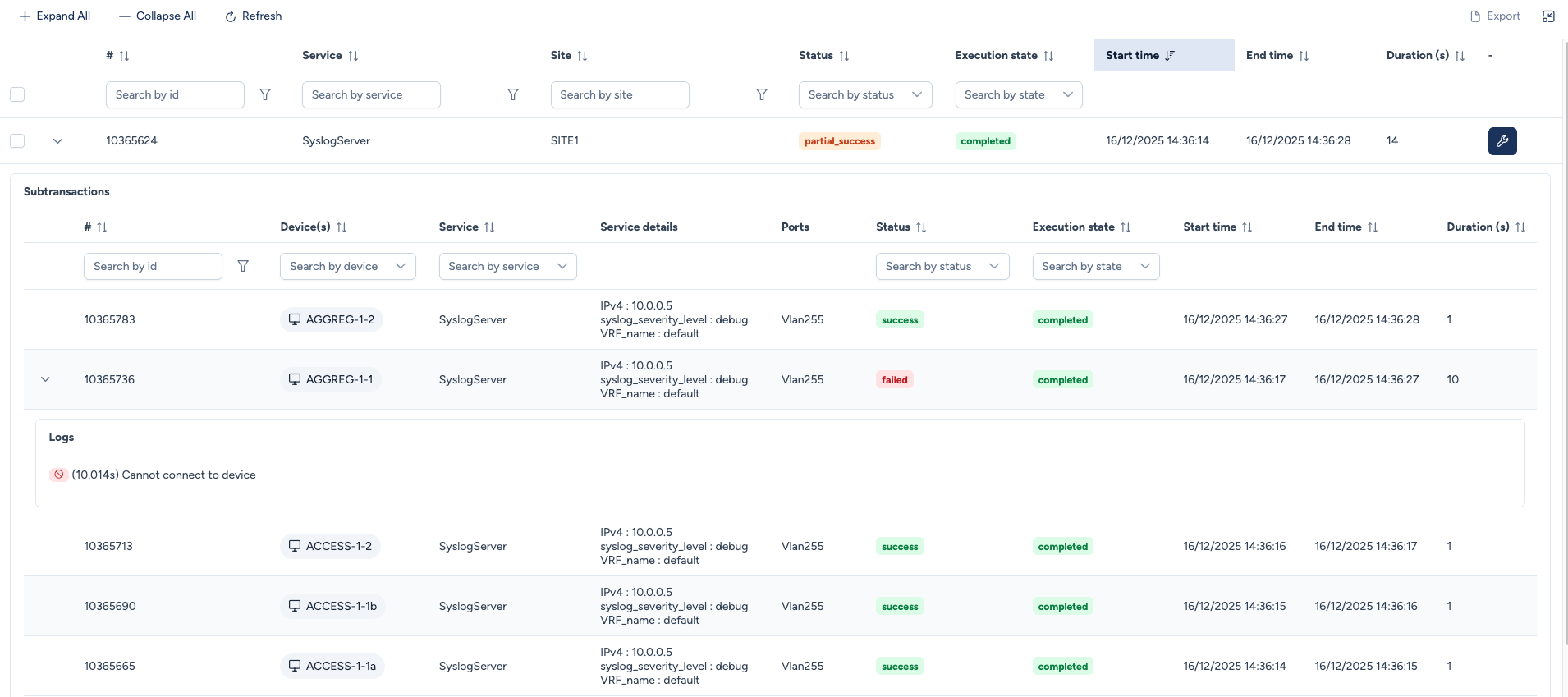
When a transaction shows a Partial Success or Failure, you can analyze the specific causes. By clicking the arrow icon located on the left of a row, you access the detailed results.
Sub-transaction Details
The expanded view lists every device involved in the operation.
In the example below, we deployed a SyslogServer. While most devices accepted the configuration, one device (AGGREG-1-1) failed.
Diagnostic Elements:
- Service Details: Shows the parameters injected during the execution (e.g., IP
10.0.0.5, Severitydebug). -
Logs & Error Messages: If an error occurs, Avalon captures the specific reason to help with troubleshooting.
In this case: The error
Cannot connect to deviceindicates the device was unreachable (timeout), likely due to a network interruption or management plane issue.
Remediation: Rerunning Aborted Services
Avalon includes a feature to easily replay failed operations. Instead of manually recreating a service for just the devices that encountered a failure, you can trigger a remediation workflow directly from the transactions page.
The rerun workflow
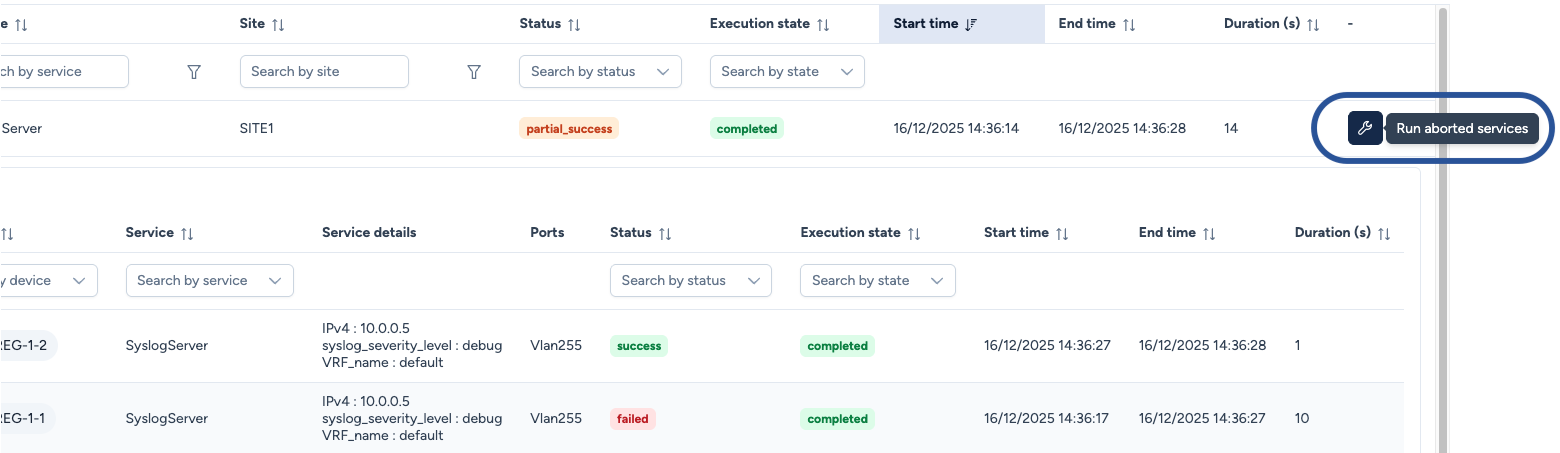
- Identify the Failure: Locate the transaction containing the errors.
- Trigger Remediation: Click the wrench icon on the right side of the transaction line.
Intelligent scoping
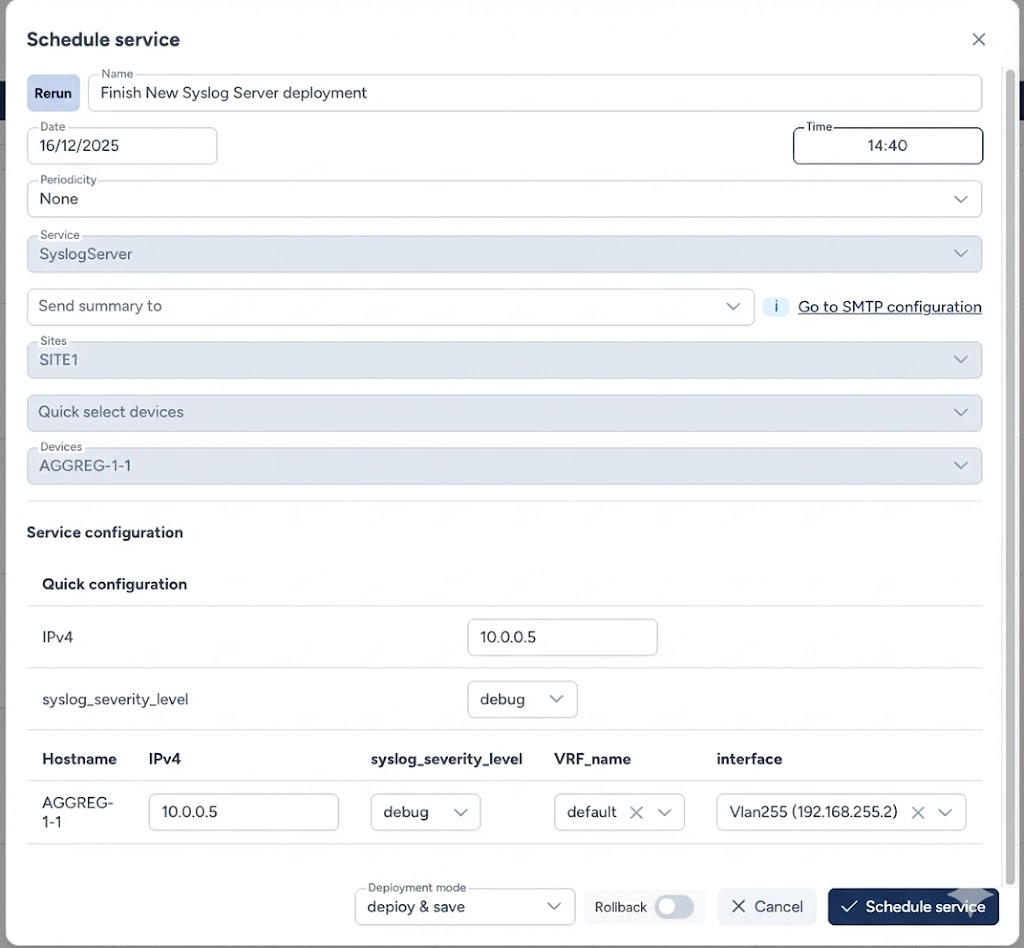
Clicking the remediation button redirects you to the Schedule Service interface with a context-aware configuration:
- Automatic Parameter Recovery: All settings (Service type, IP, Variables) from the initial attempt are pre-filled.
- Smart Filtering: Avalon automatically filters out the devices that succeeded. The scope is restricted only to the devices that failed in the original transaction.
Finalizing the Retry:
- Name: Give the remediation task a name (e.g., "Finish New Syslog Server deployment").
- Schedule: Choose an appropriate time to run the service.
- Validate: Click Schedule service to effectively schedule the remediation service.