Avalon Manager
Avalon Manager helps you to:
- Install and update Avalon with as little effort as possible
- Collect the logs needed to diagnose any issue quickly
Avalon Manager first connection
Avalon Manager URL
Avalon Manager is available through your web browser in HTTPS on port 8443.
After accessing the Avalon Manager UI, you are required to create a user.
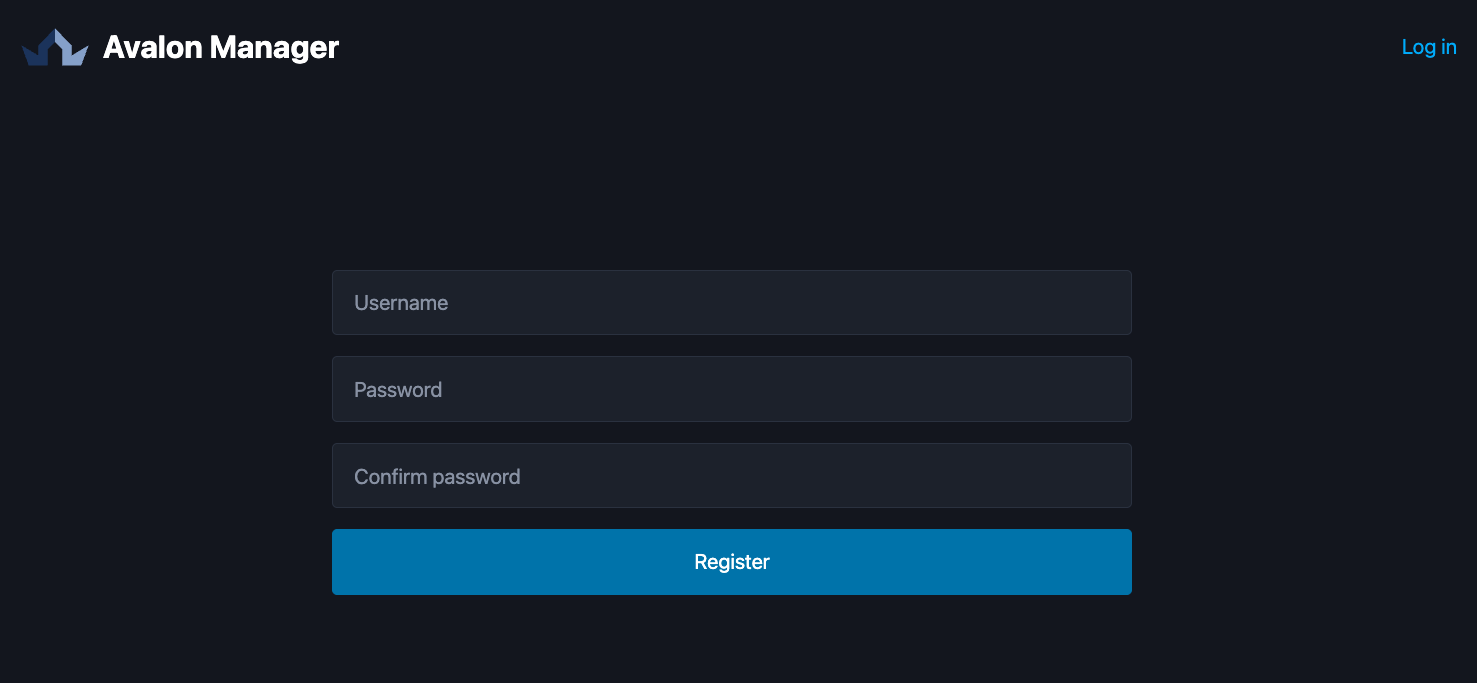
Avalon Manager only supports local users (1.4.1).
Note
You can use any username except avalon, which is reserved for the support team.
Once the user is created, you can sign in to Avalon Manager.
Avalon Manager guidelines
The Avalon Manager interface uses tabs to help you navigate through the different pages.
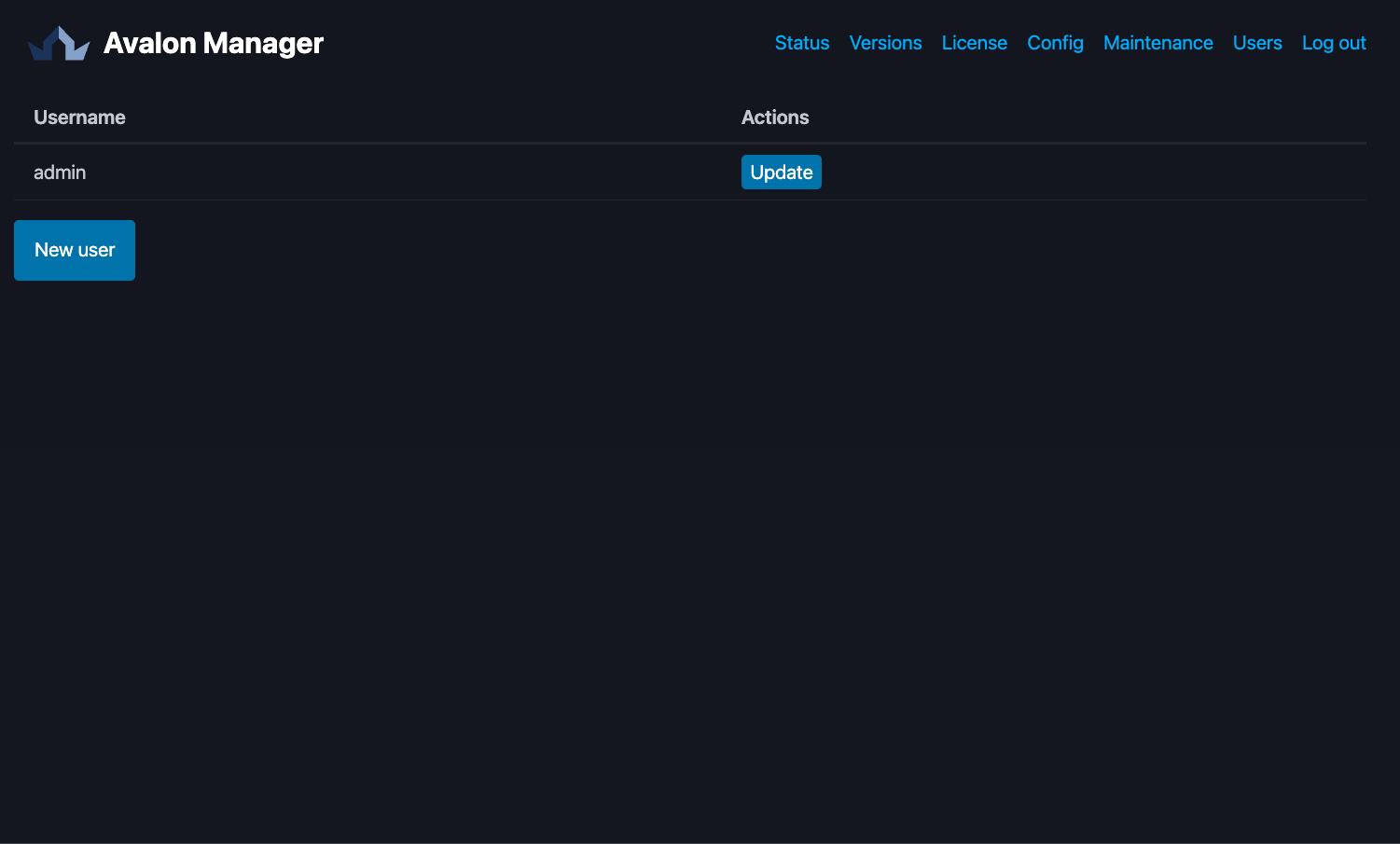
The tabs sit in the top right corner, where you can also sign out of the application:
Status, Versions, License, Config, Maintenance and Users.
Maintenance tab
The Maintenance tab only appears on a virtual appliance.
When you sign in to Avalon Manager, you are redirected to the Status tab automatically.
On the first connection, no version is running since none has been downloaded yet. You should see this display:
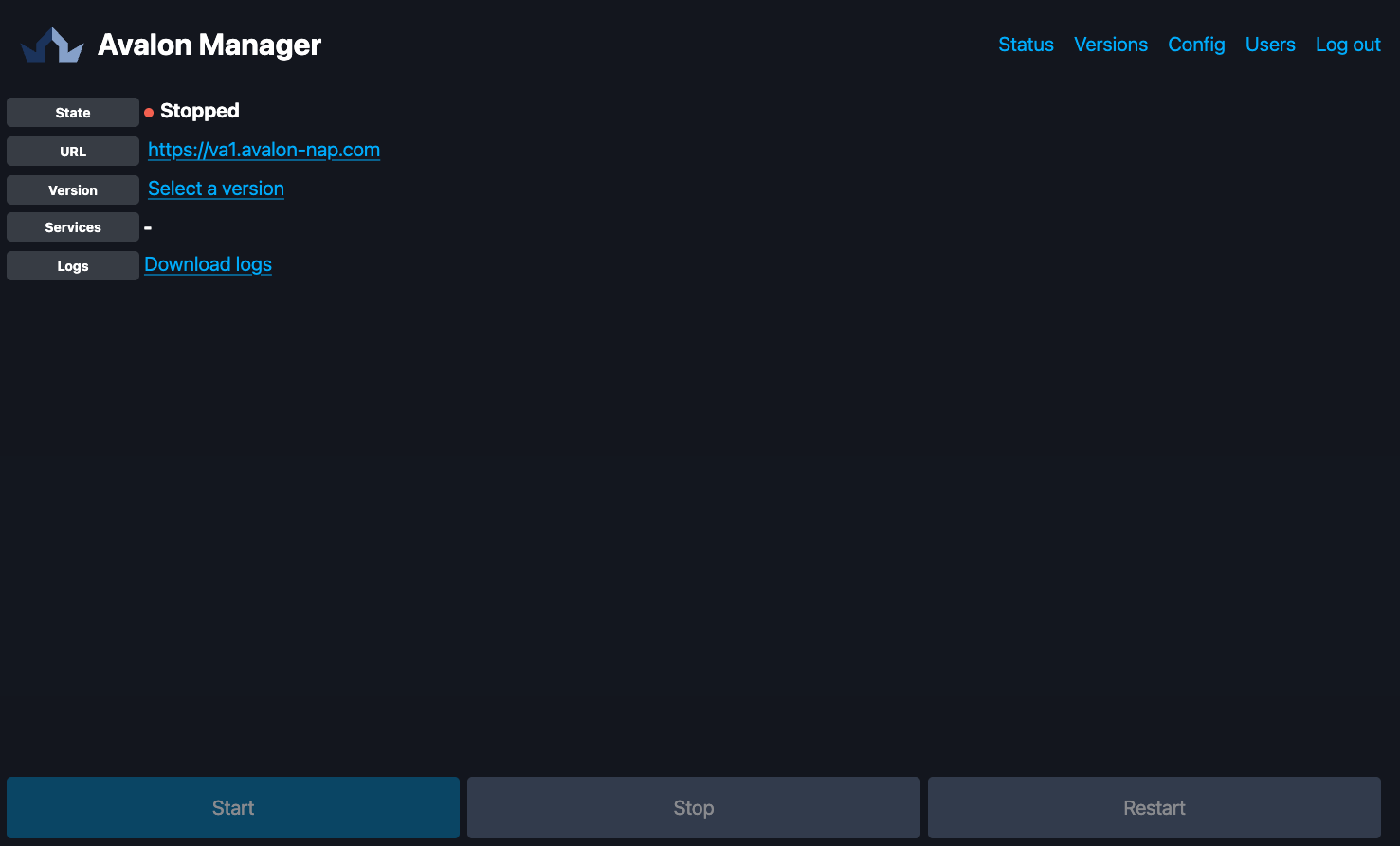
The first thing to do is to install your license, in the License tab.
License
Your license is what opens access to our servers: it acts as your credential, there is no registry account or password to enter.
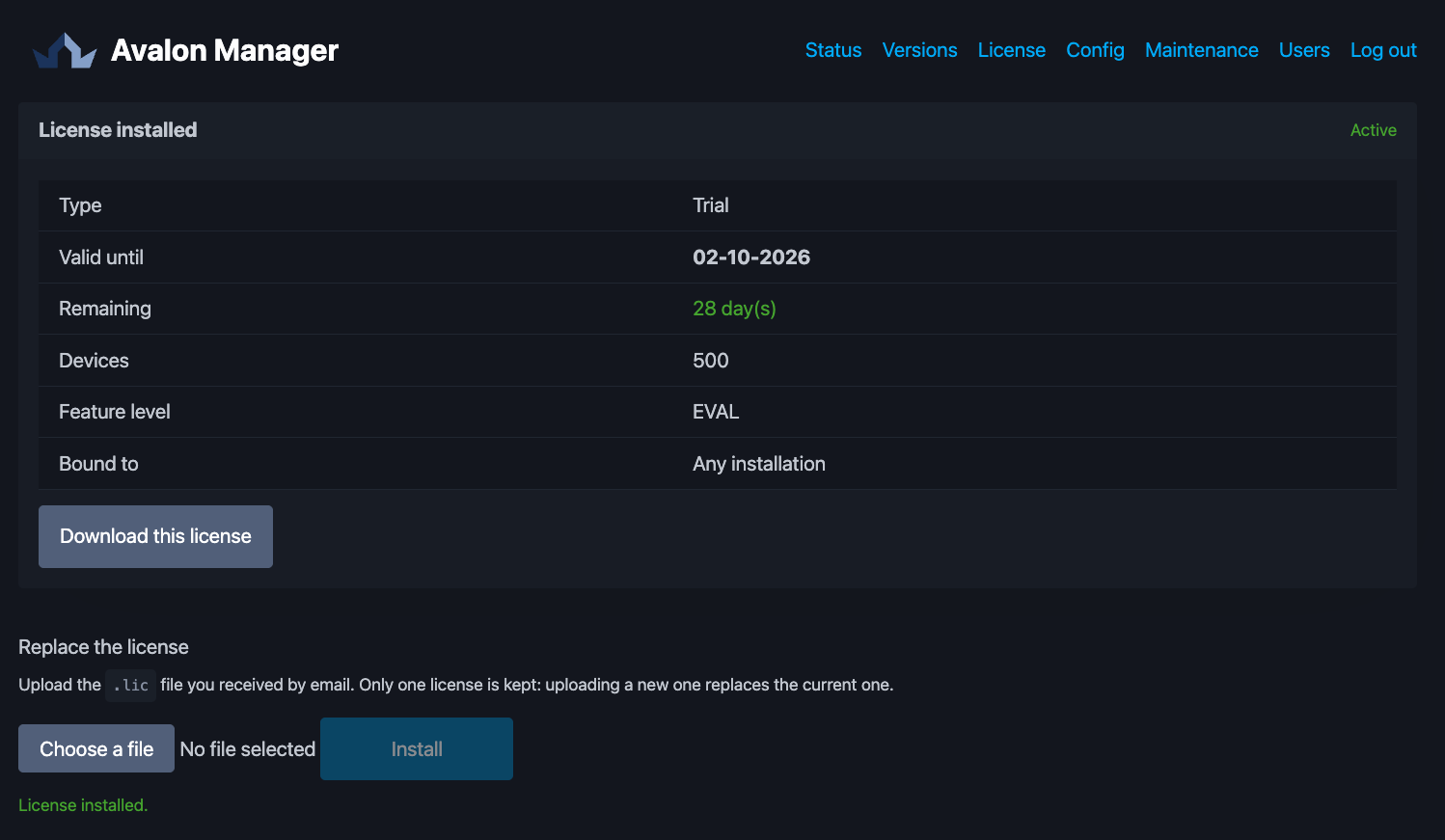
It is handed to you during onboarding. On this tab you install it, then check at any time what it grants you:
- its expiry date and the time remaining
- the number of devices allowed
- the feature level
- the customer it is bound to
You can also download it again from this screen.
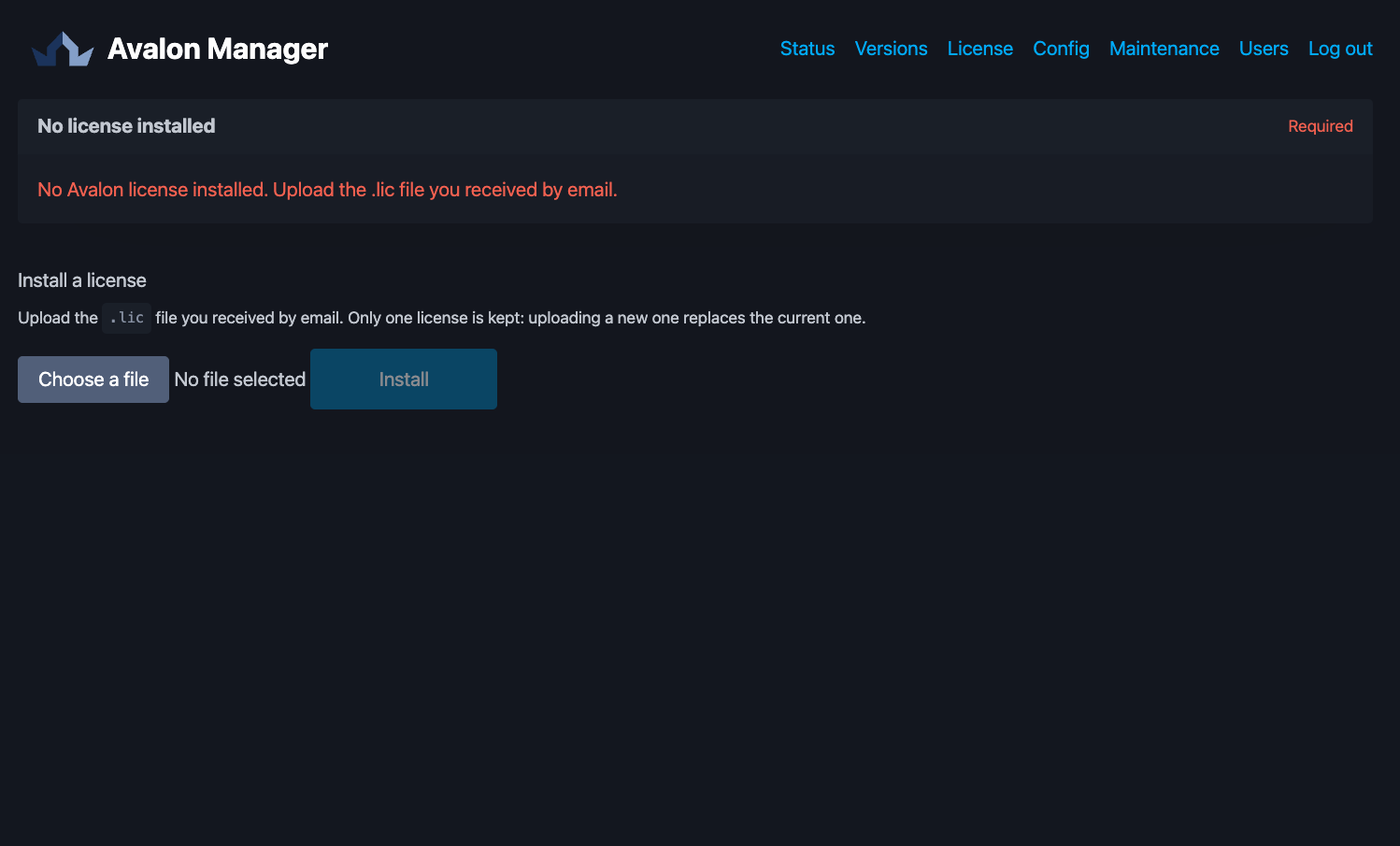
Pick the .lic file you received by email, then install it:
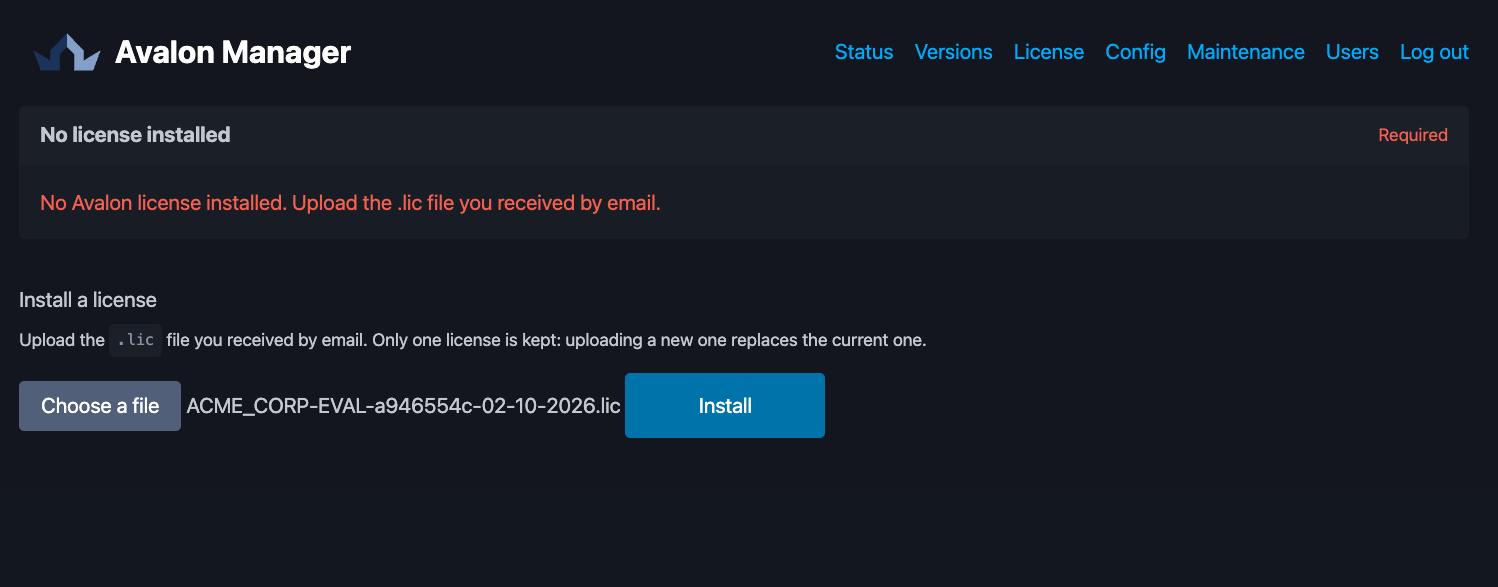
The tab then shows what the license grants:
Watch out
If Avalon Manager seems stuck for more than 10 seconds, it may be having trouble reaching our servers.
Make sure the following prerequisites are met:
- Avalon Manager has IP connectivity to our servers
- Every flow related to Avalon Manager is open on your firewalls
- Your license is valid
If all of them are met, contact our support team: support@avalon-nap.com
Move on to the Versions tab to install Avalon.
Versions
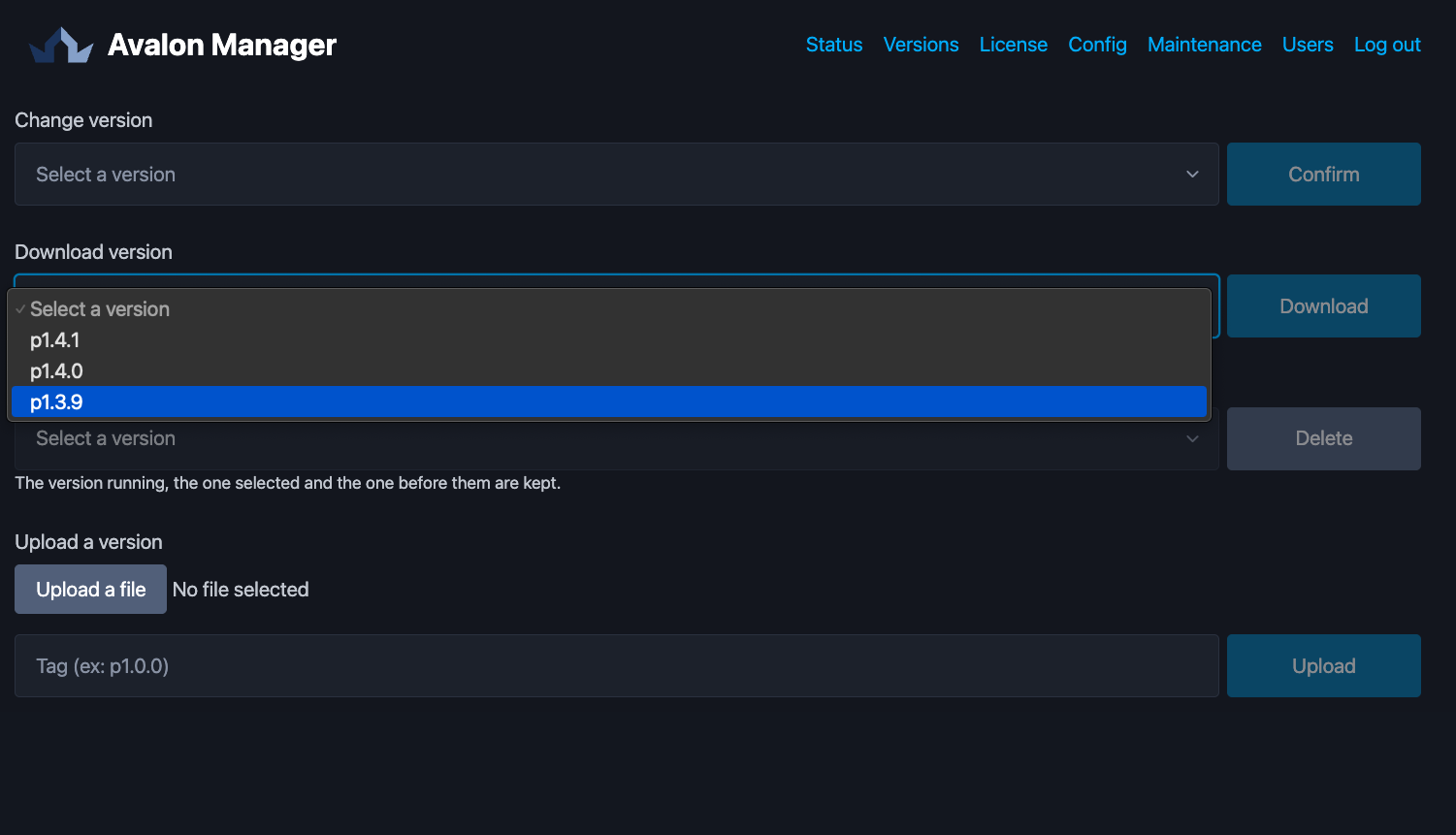
No version is downloaded at installation time: you pick the one you want from the Download version list, which only offers the versions your license entitles you to.
Pick it, then click Download:
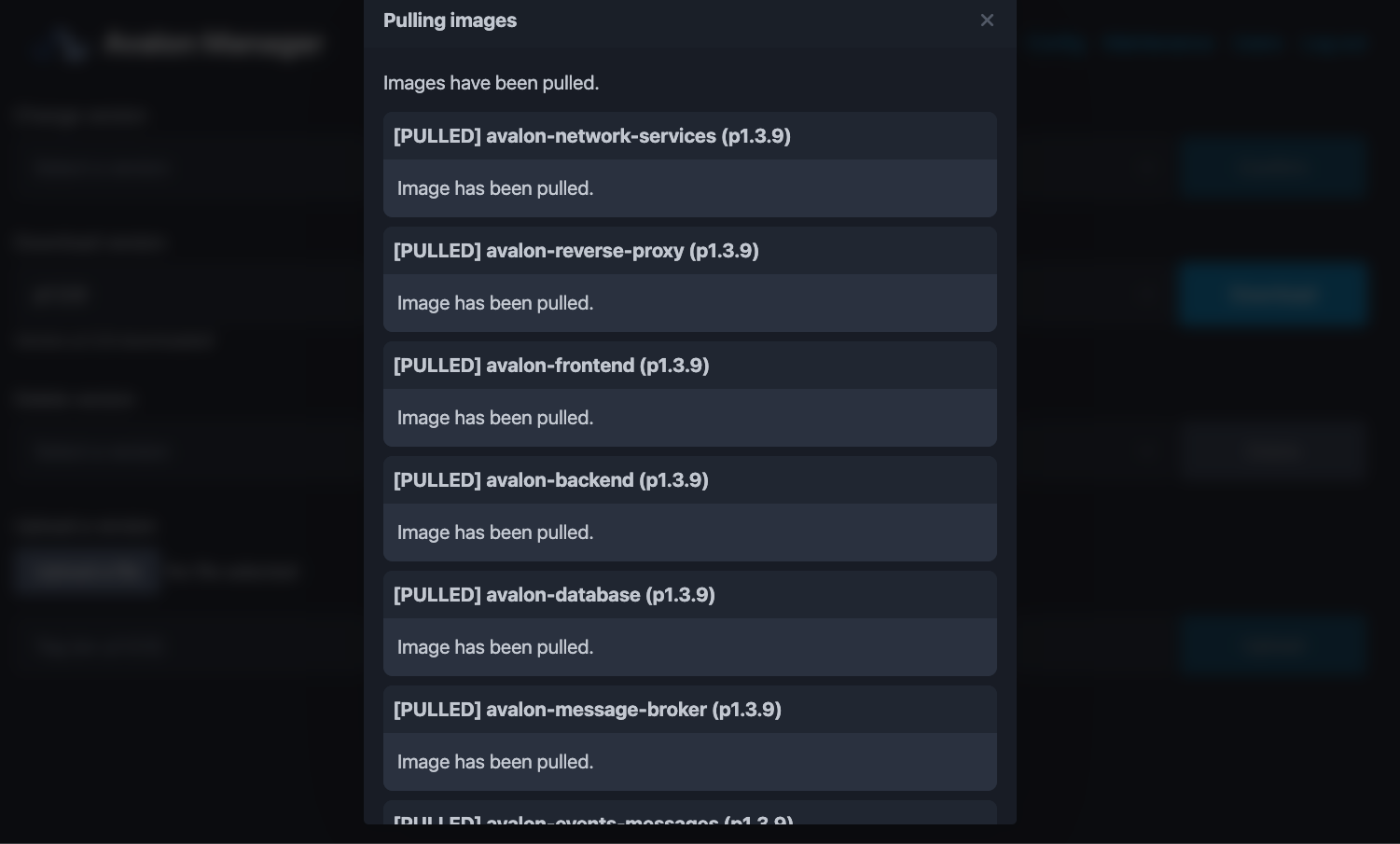
The download is shown in a dedicated window, which follows each image of the version:
Automatic recovery
Avalon Manager never downloads a version on its own. It makes a single exception: if the version you selected is known but its files are missing from the appliance, it downloads that one again at startup to put itself back in order.
Version naming
Every production version starts with a p
We may ship specific versions, available to certain customers only, for integration purposes.
Once the download completes, the version becomes available in the Change version list at the top of the tab:
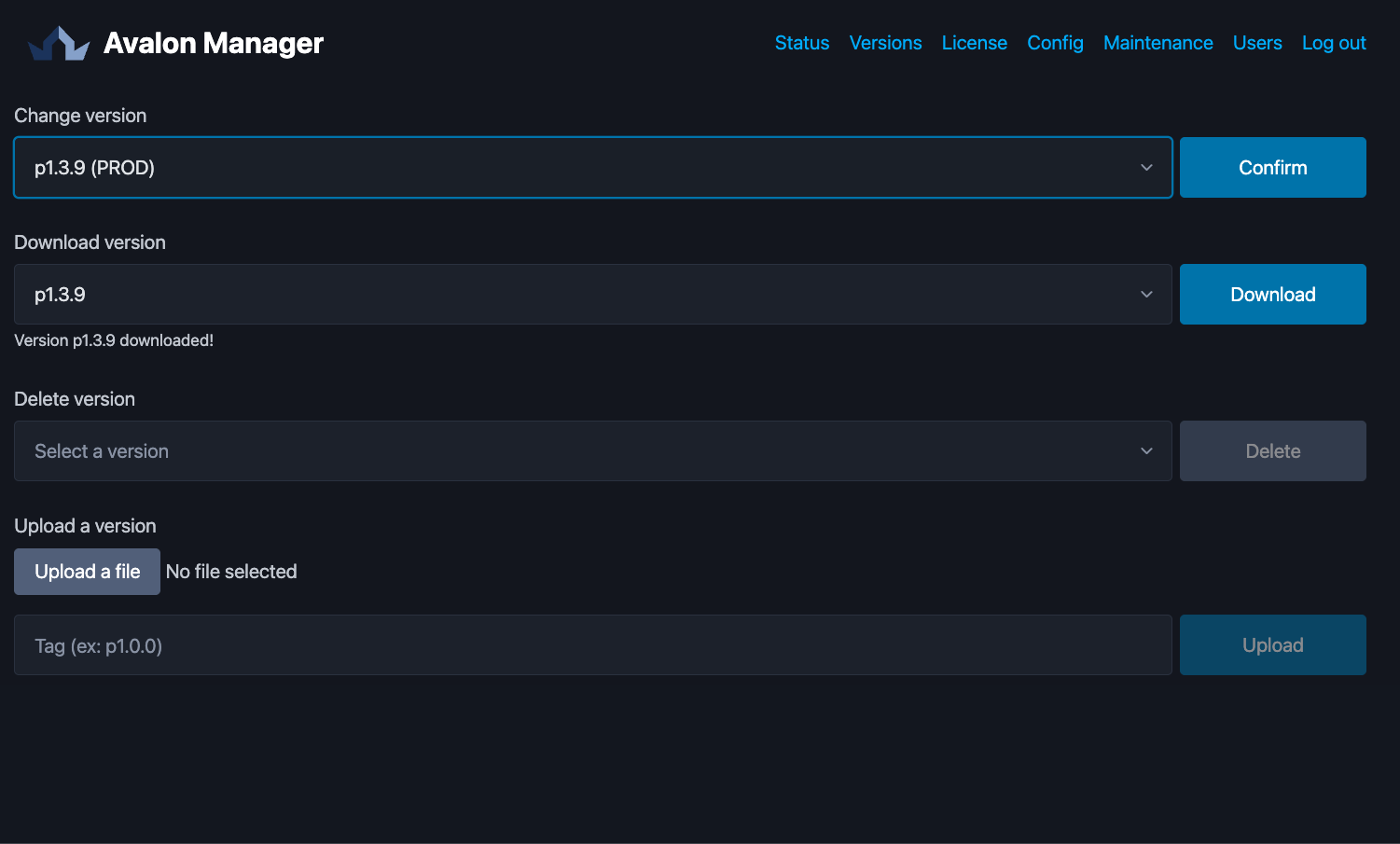
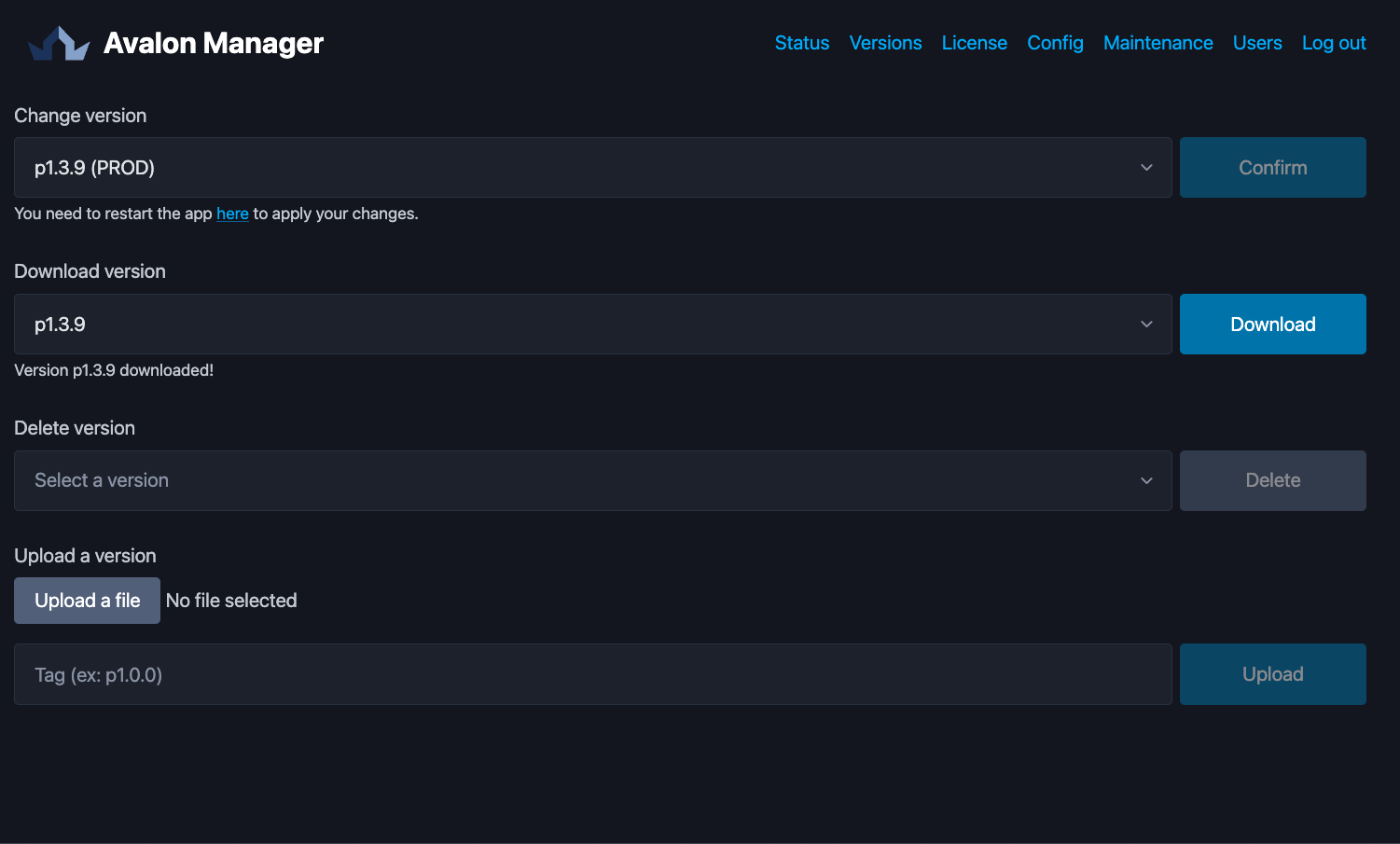
When you click Confirm, you set the next version of Avalon to run. Nothing changes until you restart Avalon, and a message points you there:
Installing a version without access to our servers
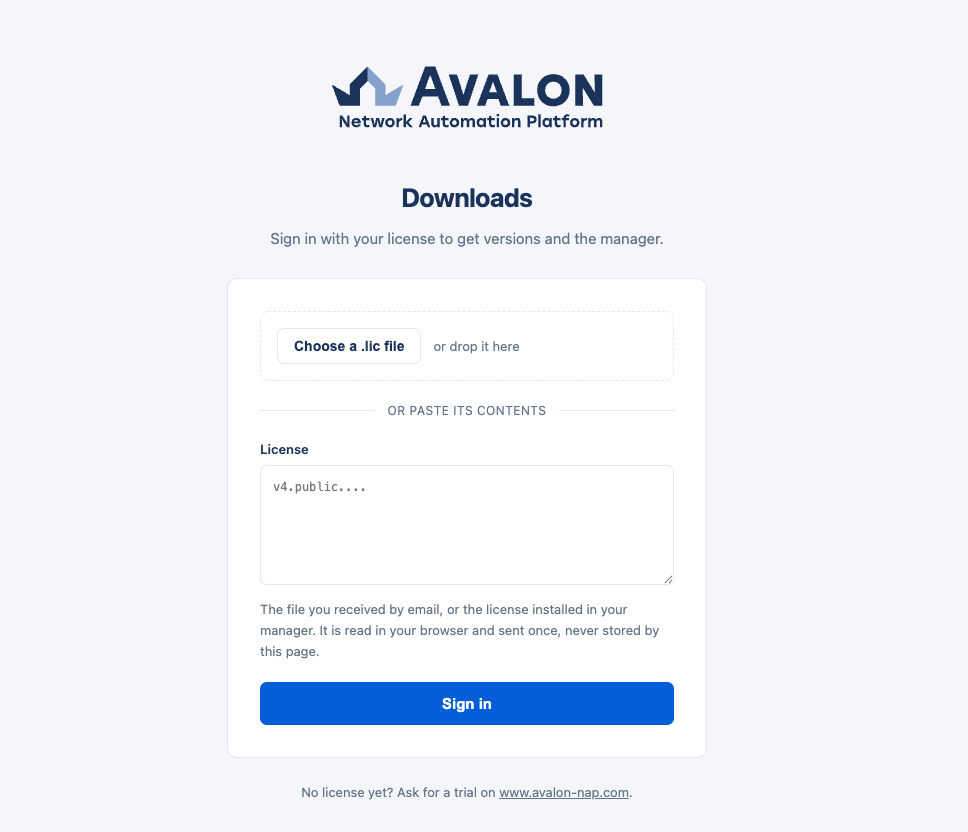
If your appliance does not reach our servers, an administrator downloads the version from the
portal, on a workstation that does have internet access. Every version is offered there as two
files: a .tar archive, which holds the complete version, and its .sig signature.
Access is granted by your license, and nothing else: no account, no password. You can drop the
.lic file or paste its contents.
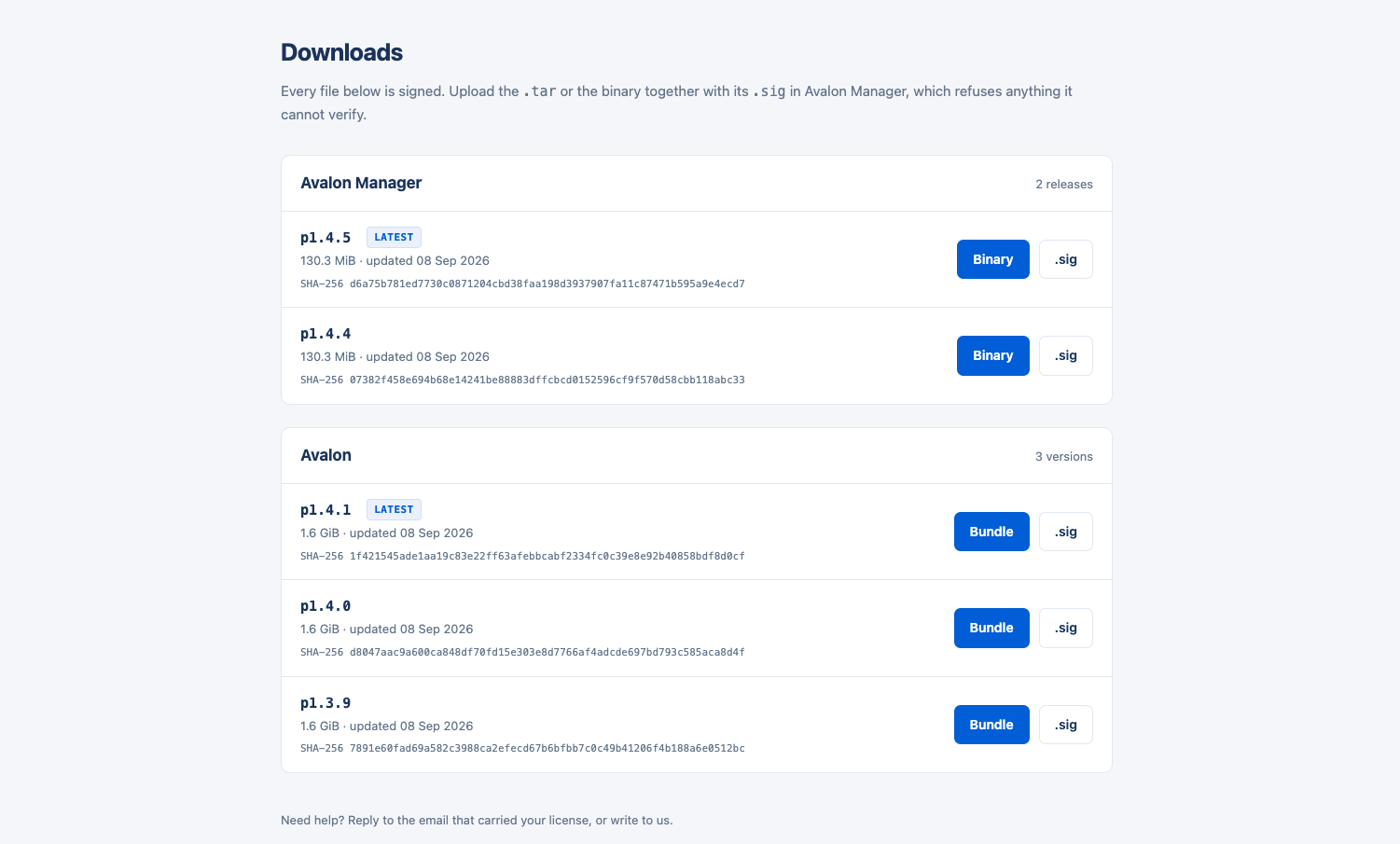
The Upload a version block, at the bottom of the tab, expects both: select the archive first, then its signature. The tag and the environment are read from the signature, you have nothing to type.
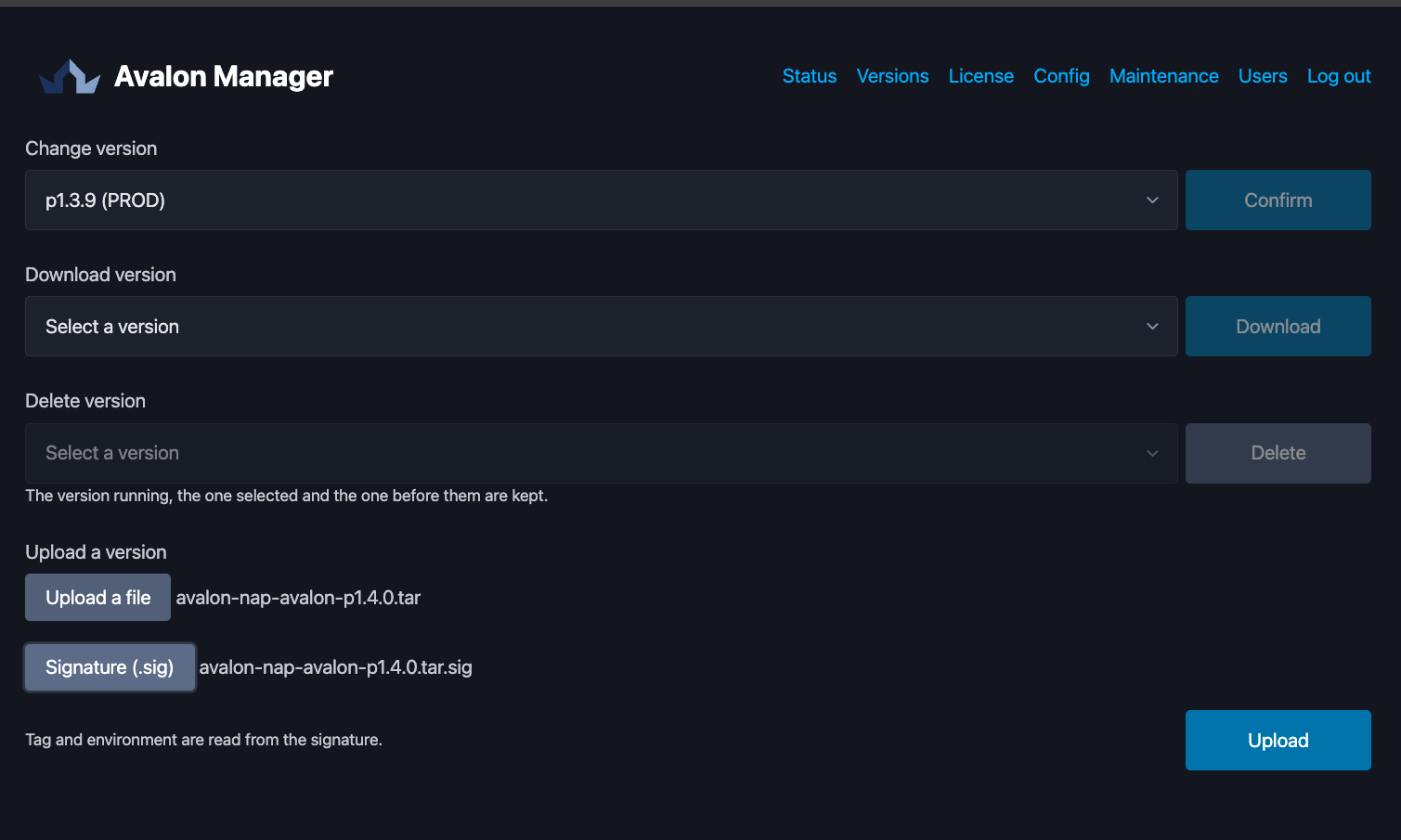
Both files are required
An archive presented without its signature is refused. The signature attests that the archive comes from us and has not been altered on the way, and it is what carries the version number: you cannot get the label wrong.
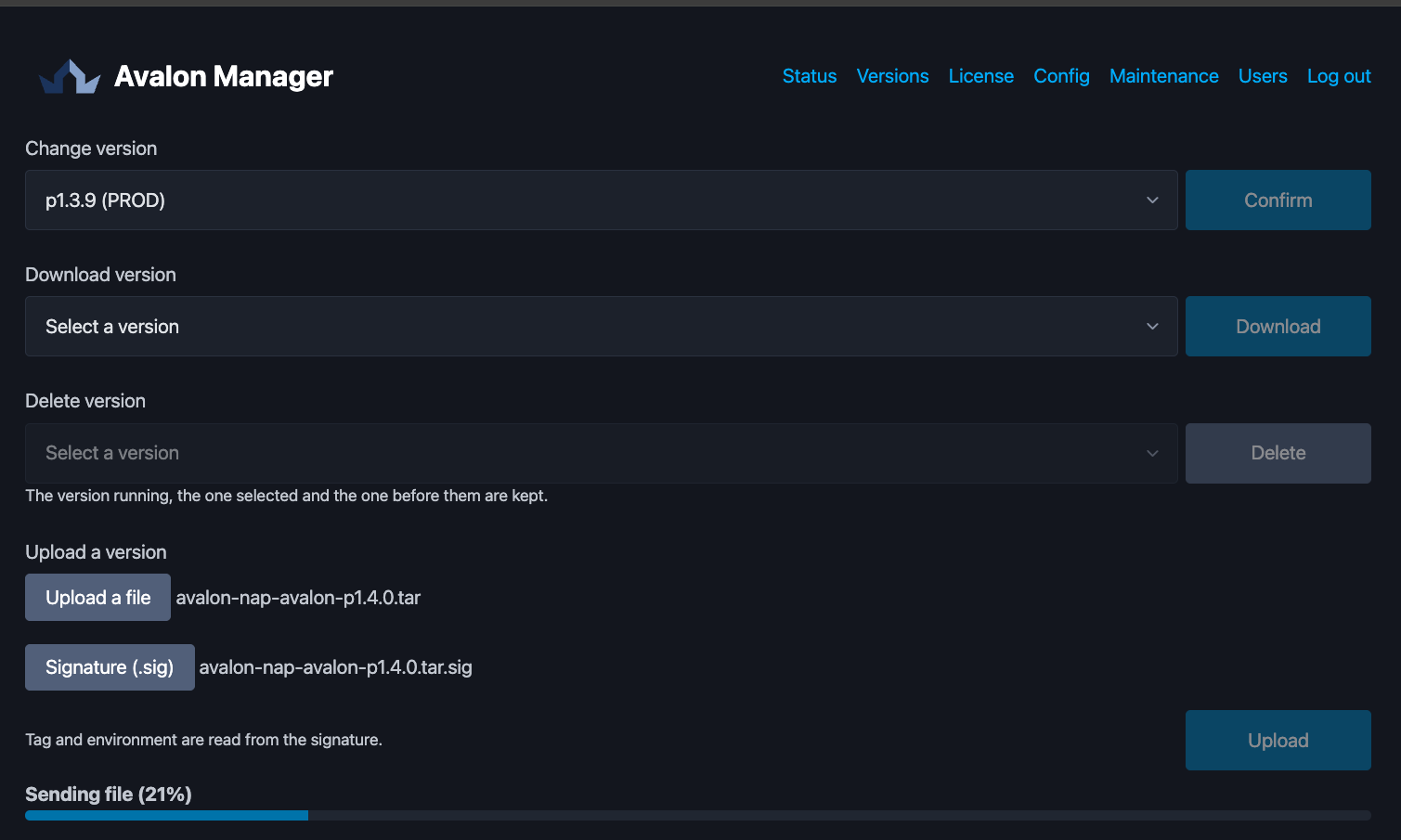
Sending a bundle takes several minutes, its size being close to two gigabytes. Progress is shown under the button:
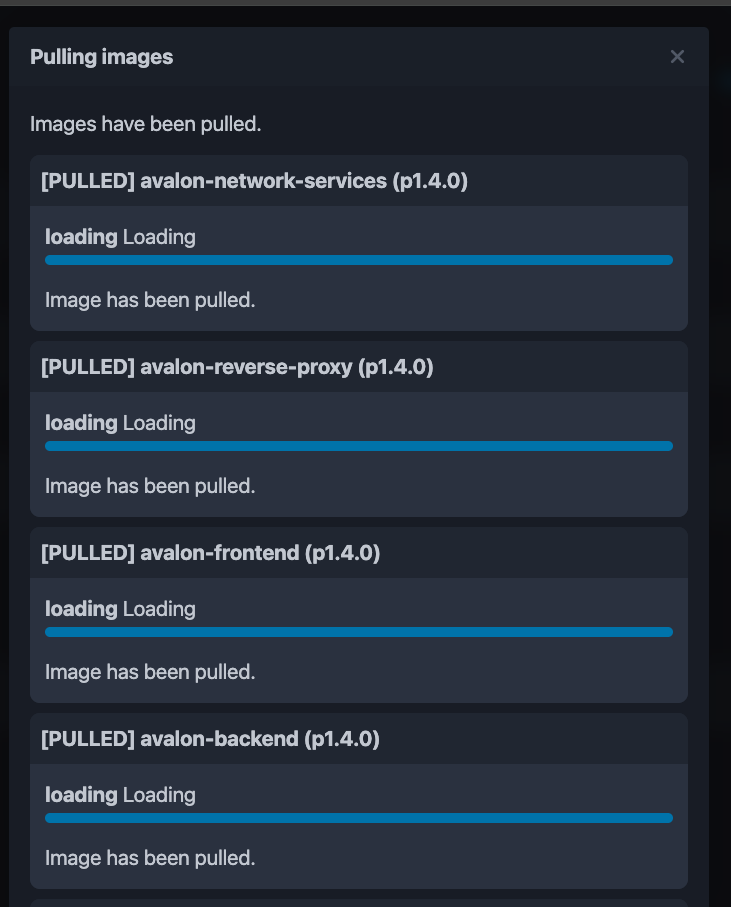
The images are then loaded from the archive, without going through the network:
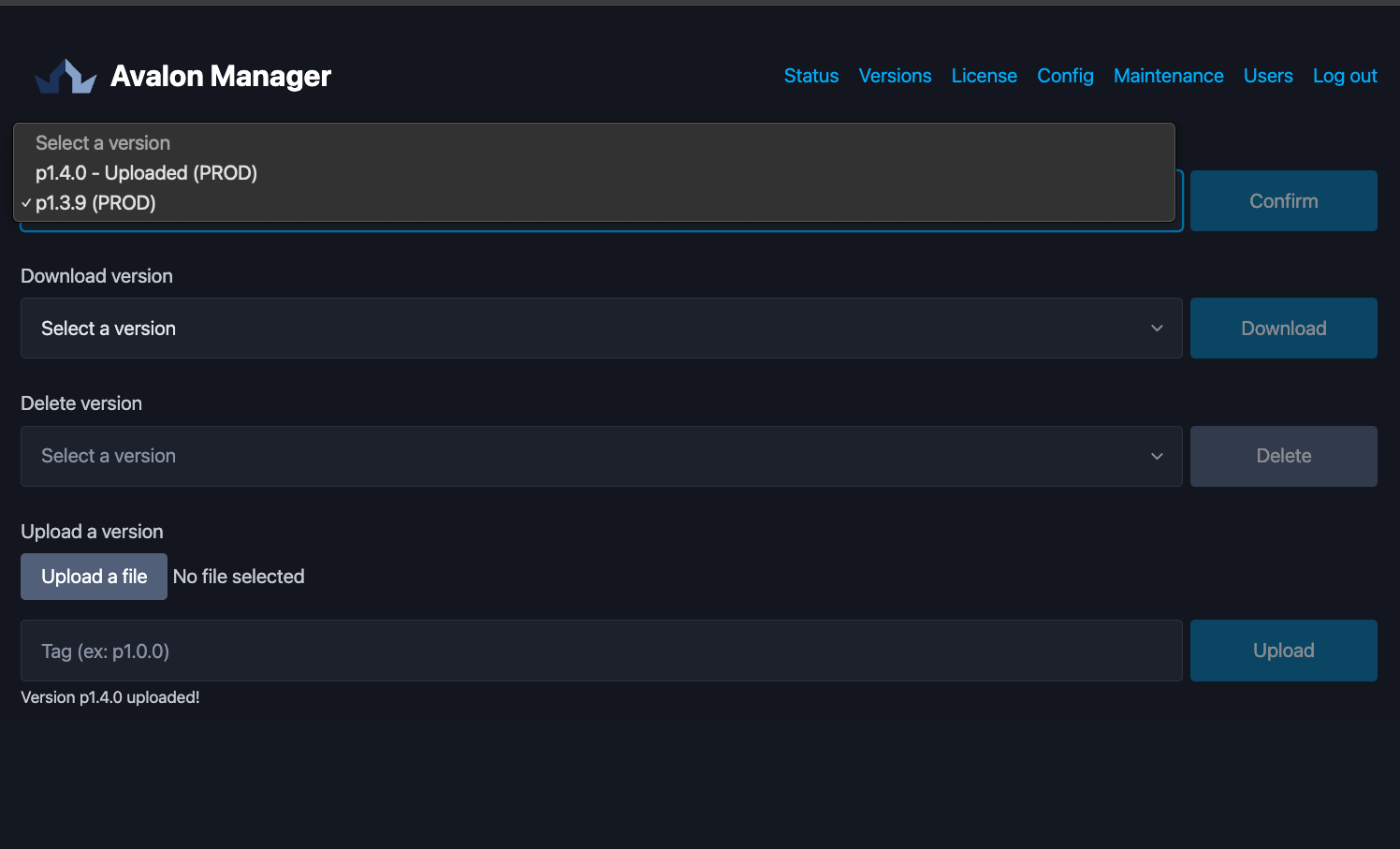
Once installed, the version joins the Change version list, where the Uploaded mention sets it
apart from those downloaded from our servers:
Going back to an earlier version
A version older than the one already installed is refused on upload. This guard rail prevents a stale archive, found on a disk or received by mistake, from silently replacing a more recent version.
It does not stop you from going back: any version already present in the Change version list stays selectable, including one older than the running one. That is why Avalon Manager always keeps the previous version, as explained below.
Deleting a version
The Delete version block frees the room taken by a version you no longer need, its images included.
The list only offers the versions that can actually be deleted. Three are kept and never appear there:
- the one currently running,
- the one you selected for the next start,
- the version immediately before them, which is your only way back without downloading again.
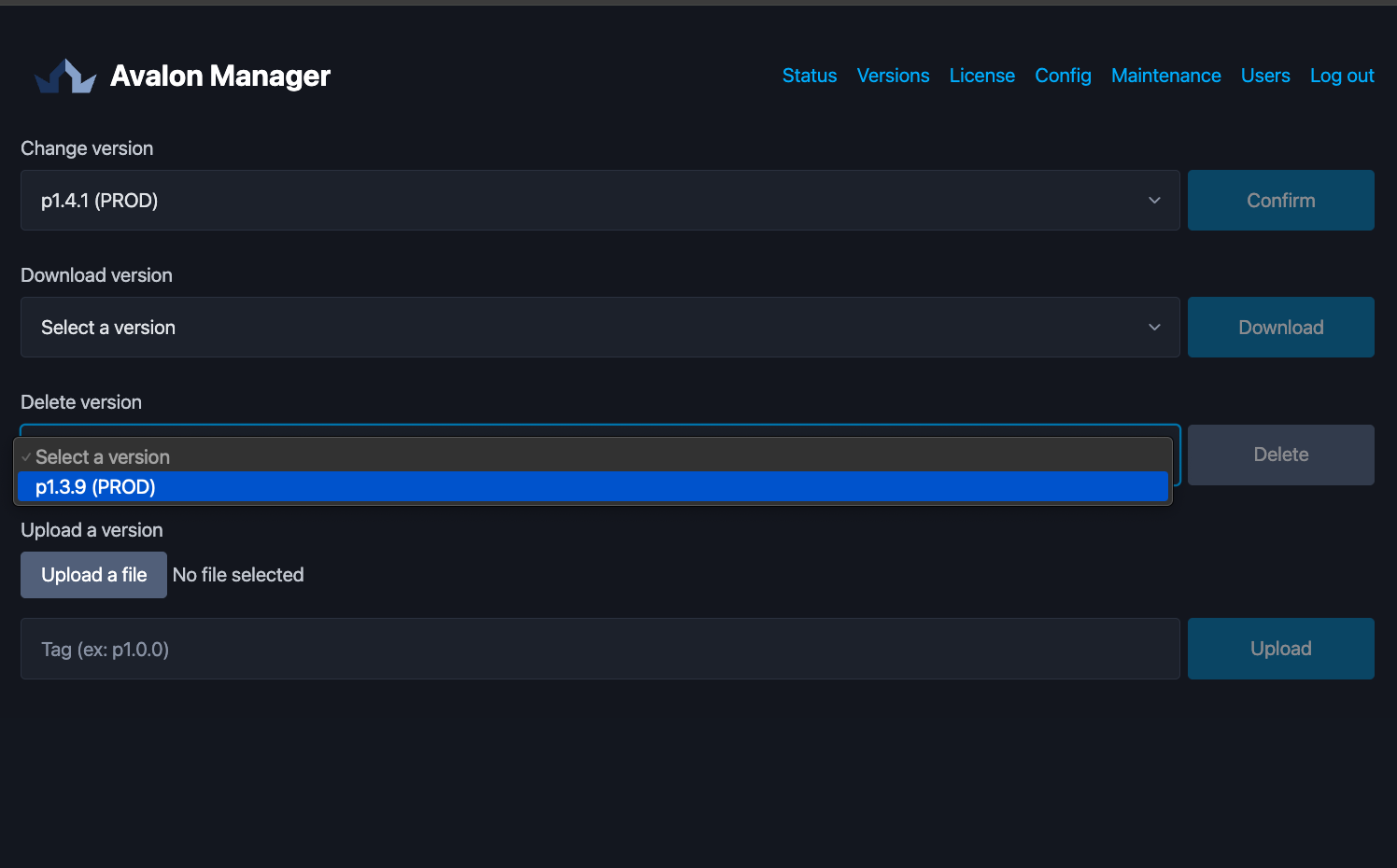
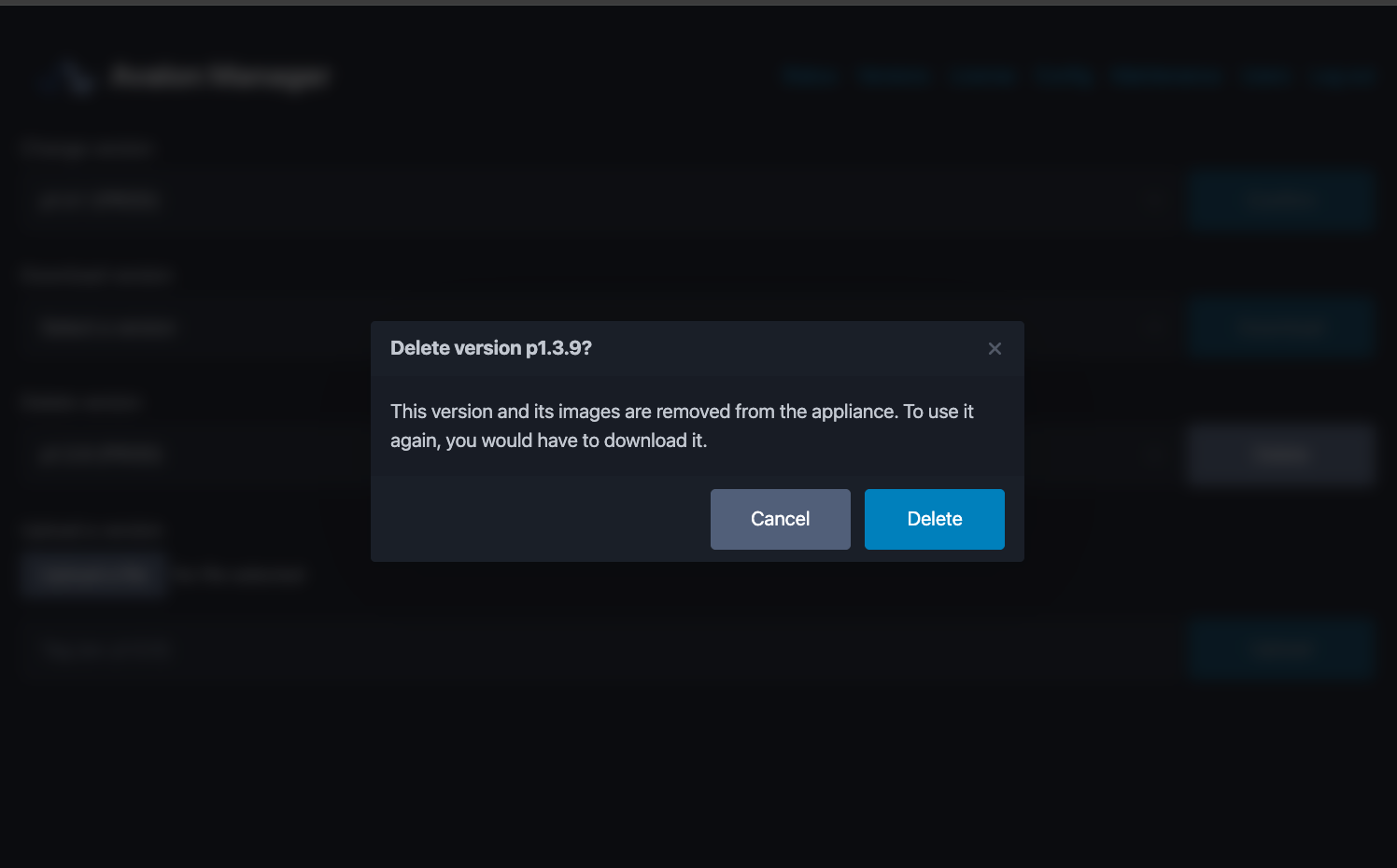
A confirmation restates what goes and what it costs to change your mind:
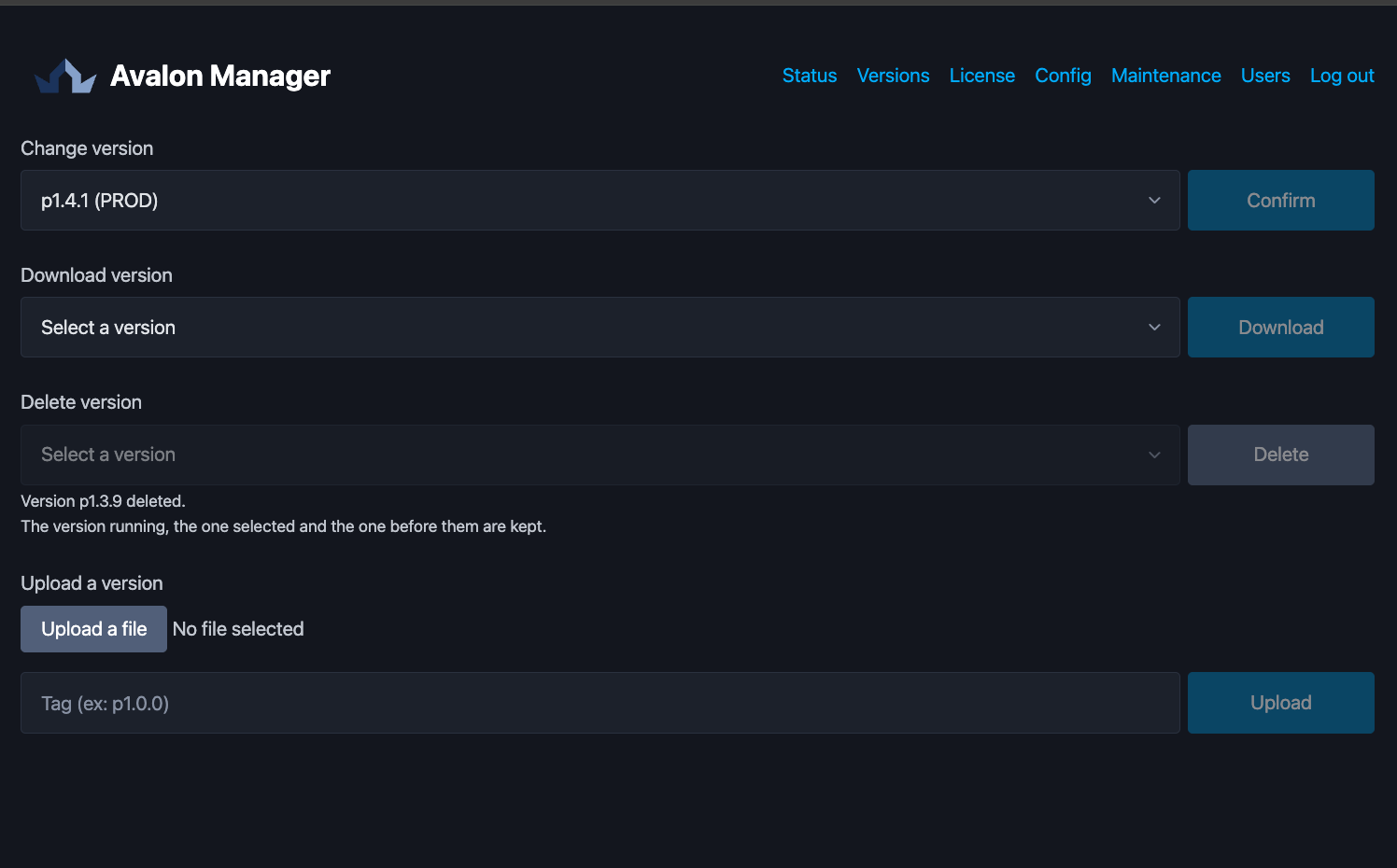
The version then leaves the list, and a message confirms it:
What deleting frees
Two successive versions share most of their content. The room recovered is therefore markedly smaller than the size announced for the images, and that is expected.
Status
This is where Avalon starts, once the version has been chosen.
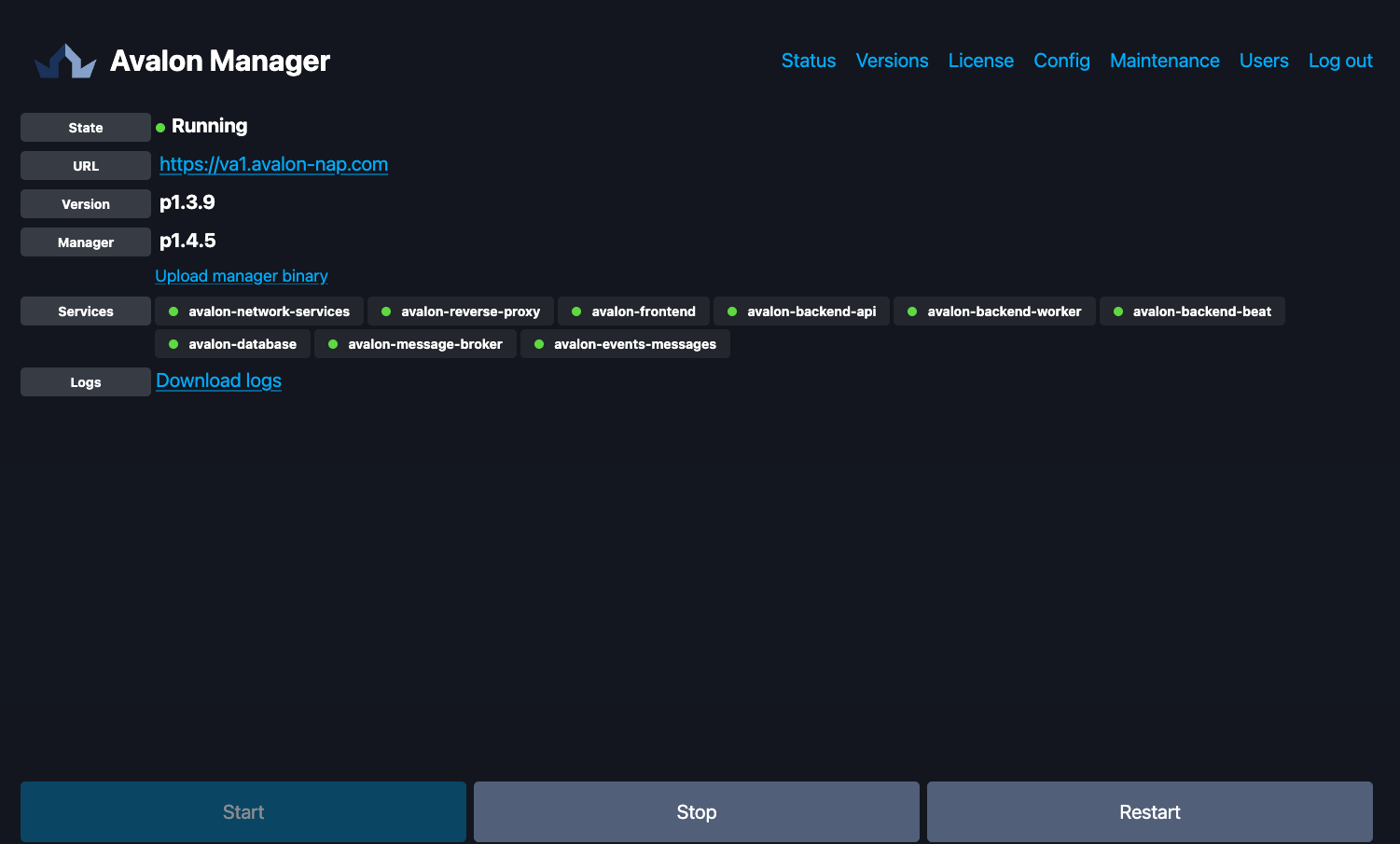
You simply click the Start button at the bottom left of the Status tab to launch Avalon. Right after, the status of Avalon App goes from stopped to Starting, with the status of every container updated in real time:
- Grey: the container is stopped, either because Avalon is stopped or because the container hit a critical failure
- Yellow: the container is starting, avalon-backend-api and avalon-backend-worker being the last ones to come up
- Green: the container is running
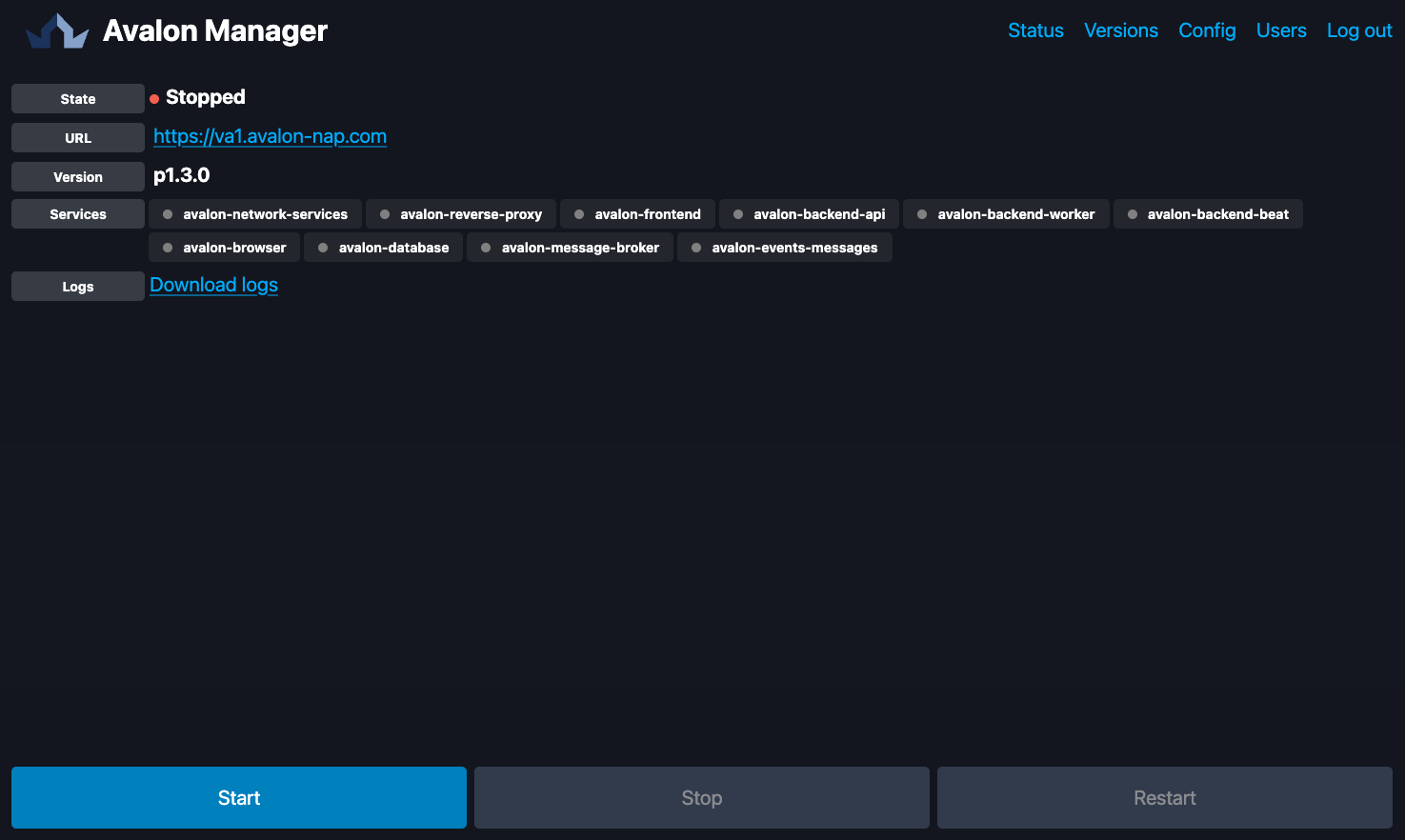
Once every container has started, the overall status of Avalon turns green / Running
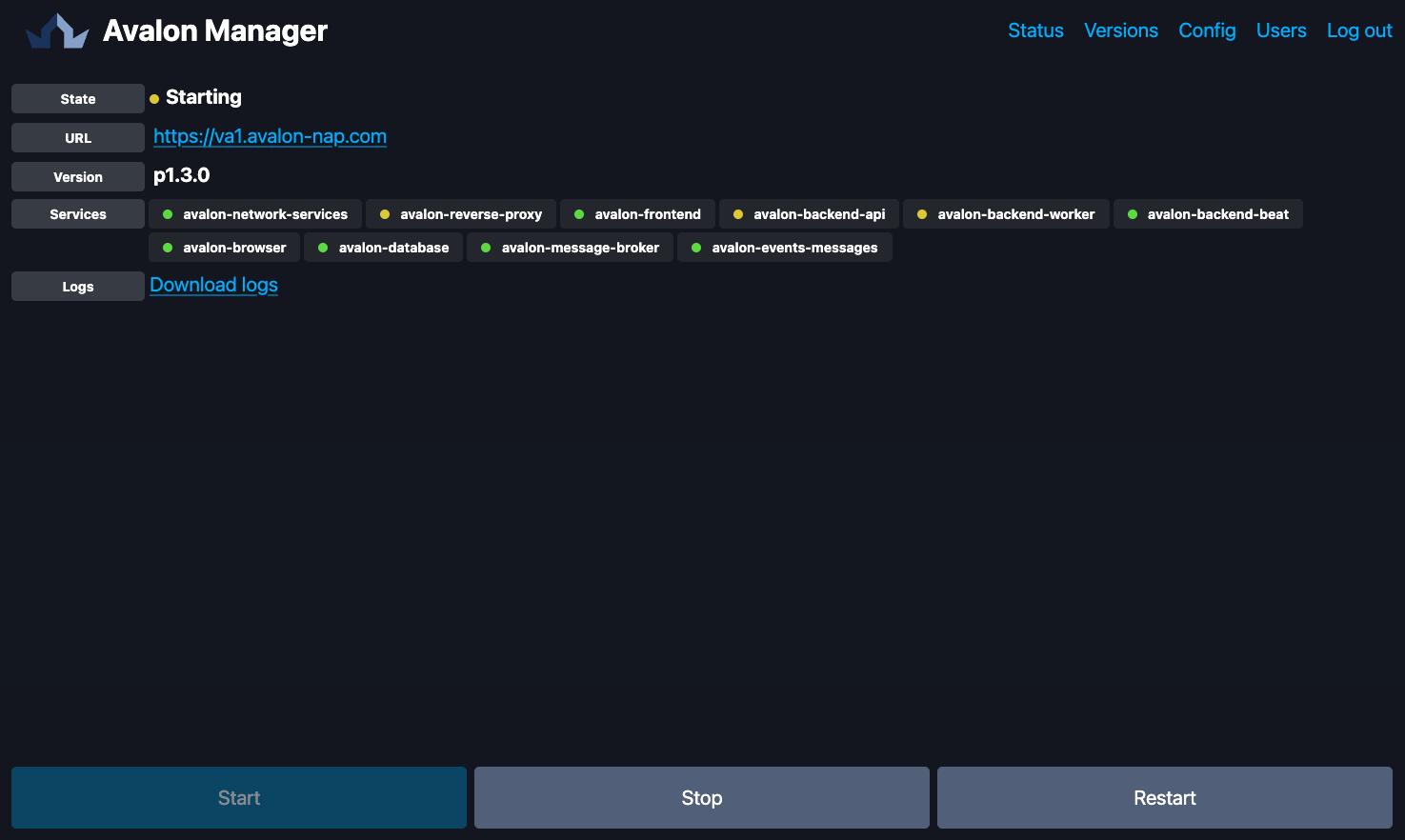
Avalon is now ready to use, and you can click the link provided to open a new tab in your browser and reach the Avalon sign-in screen.
Two commands on this tab deserve an explanation.
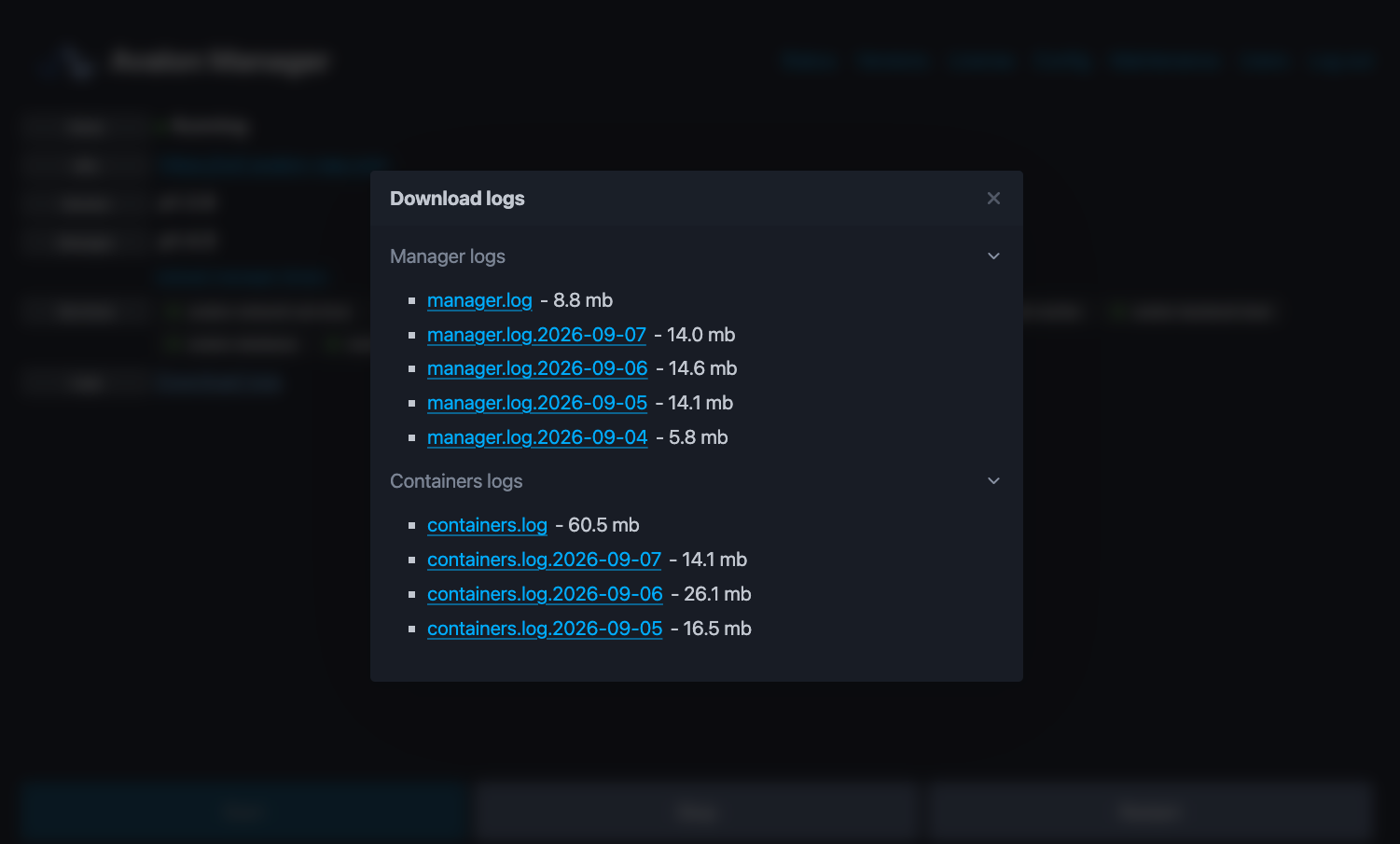
Download logs gathers the manager logs and the container logs, from today and from the previous days, and lets you retrieve them to send them to us.
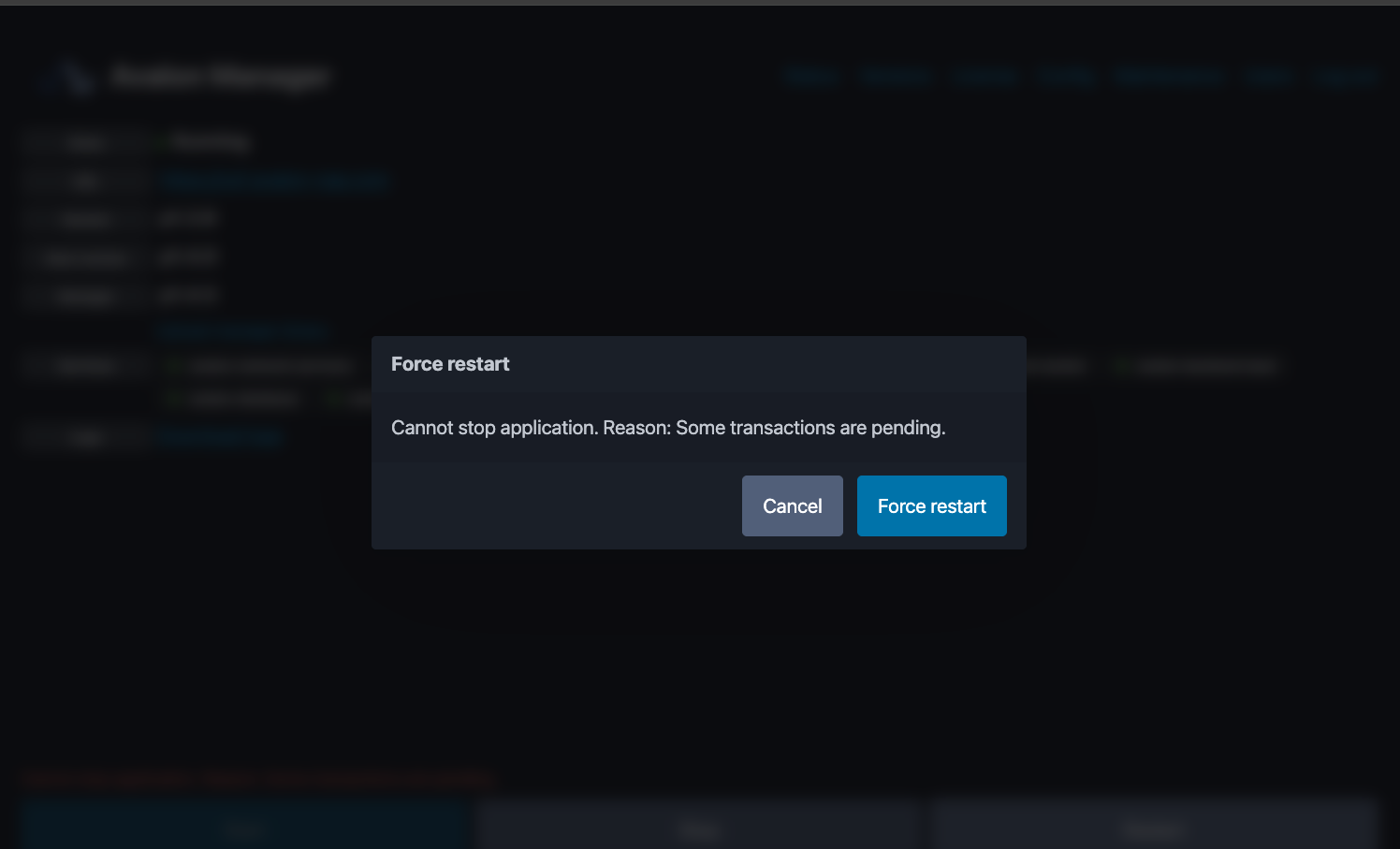
Stop and Restart ask Avalon before acting. If work is in progress, the operation is refused and the reason is given. You may override it, but the ongoing operation will be interrupted as it stands.
Import your license
The first step will be to import the license provided during onboarding.
Updating Avalon Manager
Avalon Manager updates itself from this very page, under the Manager line that shows its current
version. As for an Avalon version, we hand you two files, the .bin binary and its .sig
signature.
Click Upload manager binary, choose the binary, then click the link that appears to point at its signature. The update starts there, and the manager restarts on its own once the replacement is done. Avalon is not interrupted: only a brief unavailability of this interface is to be expected.
A binary that does not match its signature is refused
The manager checks that the binary declares the version its signature announces. On any mismatch the update is refused and nothing is replaced.
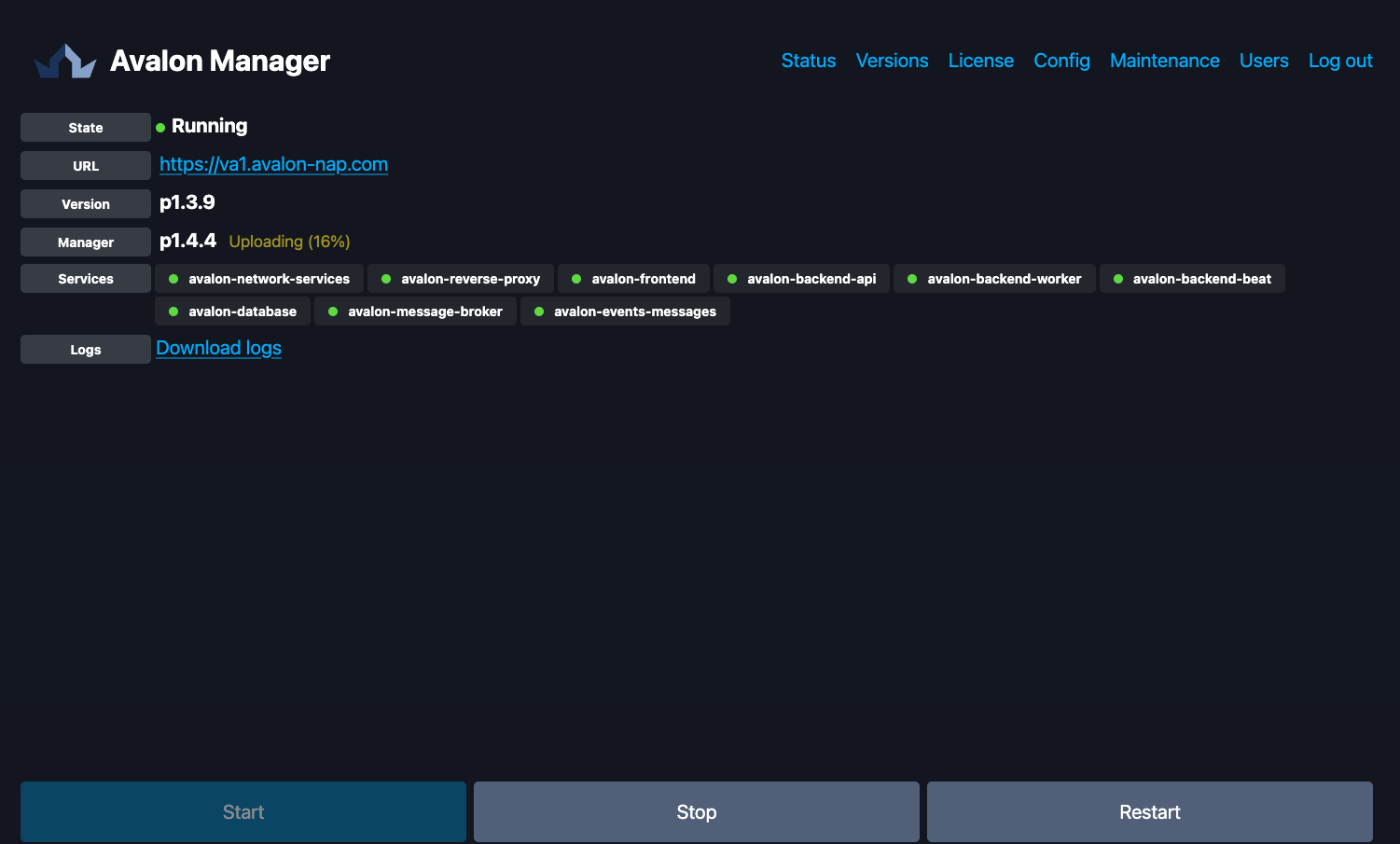
Once the manager has restarted, the Manager line carries the new version:
Config
The Config tab holds the settings of your Avalon Manager instance, grouped by theme:
- Avalon API: enabling access to our servers, and proxy configuration if your network requires one
- SSL: turning HTTPS on or off on the manager interface
- System: custom APT repository for system updates
- SNMP Monitoring: the appliance SNMP agent, with its state and its enable switch
Administrator accounts also see an untitled group, at the top of the page, holding the settings of the manager itself: listening address and port, domain name, public URL of Avalon, number of log lines kept, automatic start of Avalon when the appliance boots.
Registry access
There are no registry credentials to enter any more: access to our servers is carried by your license, installed in the License tab.
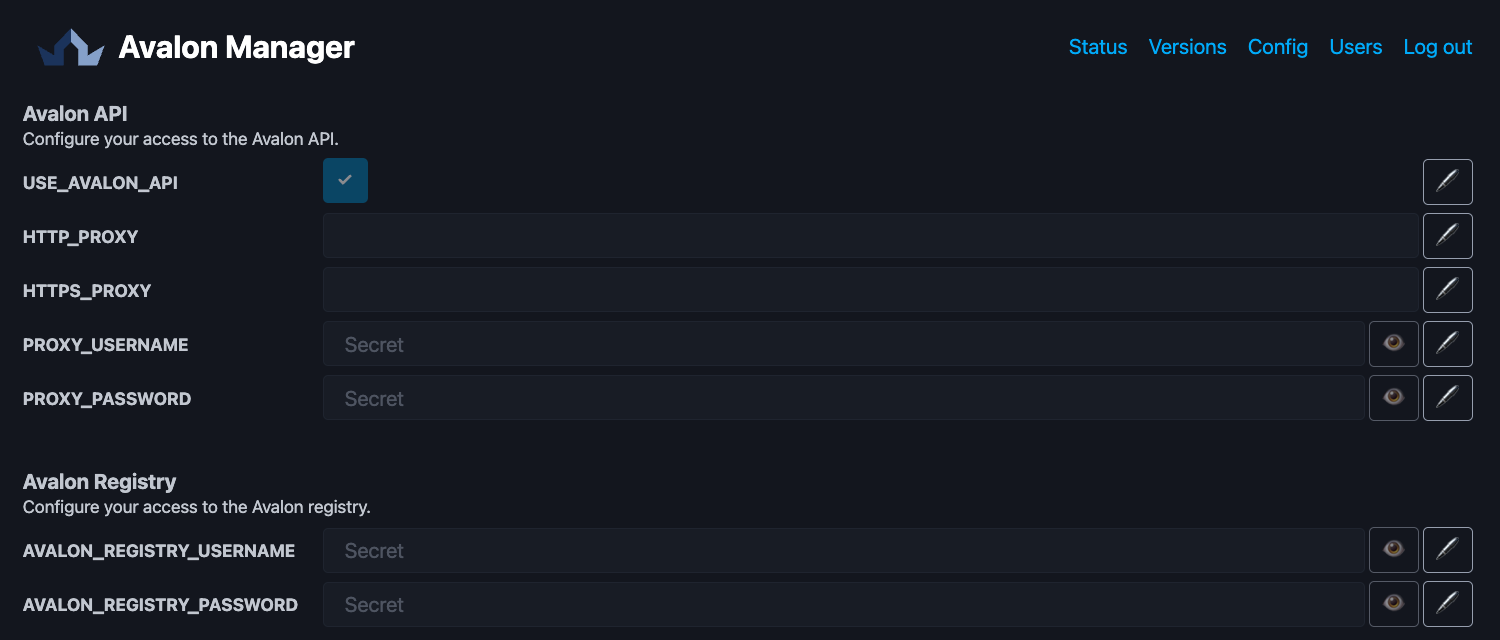
Every line is edited in place: the pencil on the right opens the value, and two
buttons appear to confirm or cancel. Sensitive values are masked and show Secret; the eye
reveals them long enough to check.
Most changes call for a restart of Avalon Manager. When they do, a message appears in the bottom right corner of the tab: click it, confirm, and the manager restarts. Avalon itself is not interrupted.
Maintenance
The Maintenance tab gathers the state of the appliance and the operations that concern it. It reads from top to bottom.
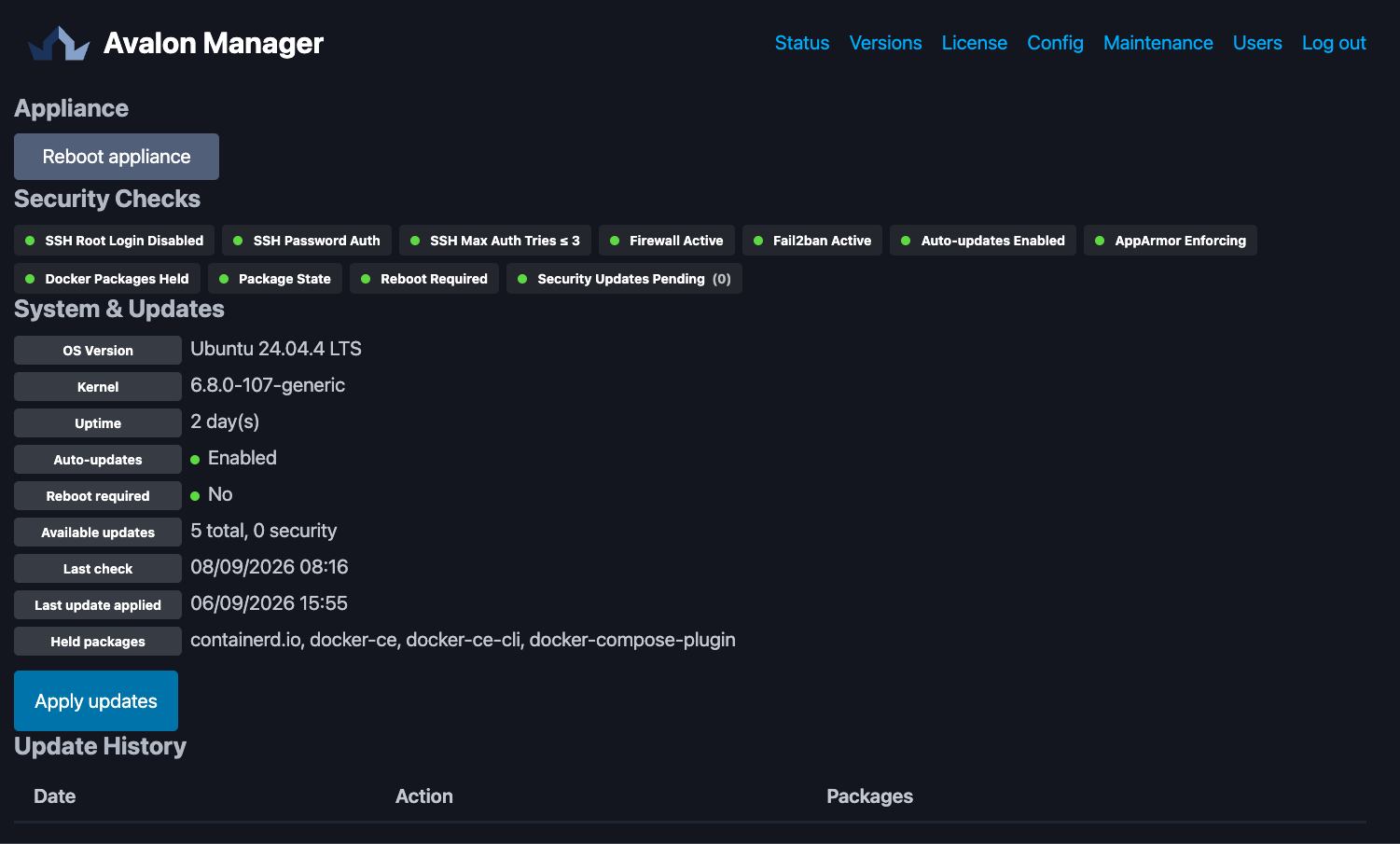
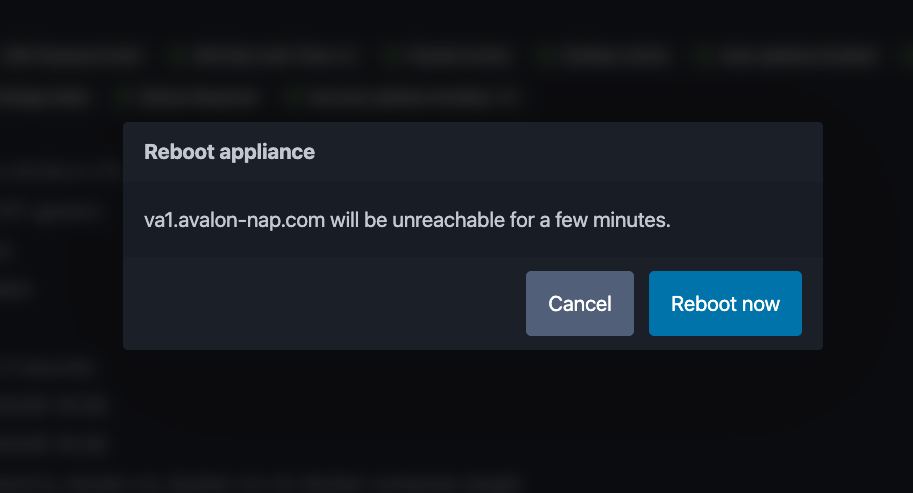
Appliance. The Reboot appliance button restarts the machine. When an installed update calls for a reboot, a Reboot required banner appears at the top of the tab with a Reboot now button. Rebooting stays available at all times, banner or not.
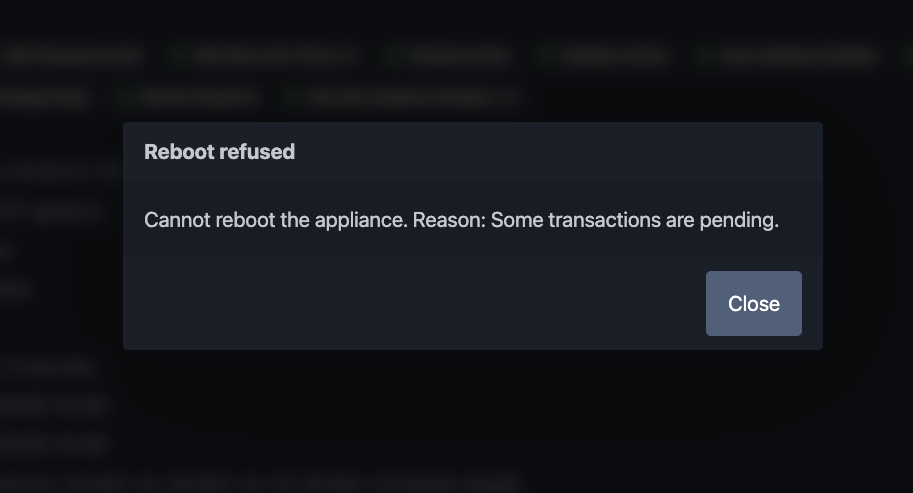
The reboot is refused while Avalon is working
Avalon Manager asks the application before rebooting. If work is in progress, the request is refused and the reason is given. Wait for the work to finish rather than force it: a reboot at the wrong moment can leave an operation half done.
Security Checks. A list of appliance hardening checks, each in green or red: SSH root login disabled, limited number of authentication attempts, firewall active, fail2ban active, automatic updates enabled, AppArmor enforcing, Docker packages held, package state, reboot required, security updates pending.
SSH Password Auth is a statement, not an alert
That line simply reports that password authentication is active. It is the normal way of signing in to the appliance account, and it is shown in green whatever its value.
System & Updates. The system and kernel versions, the uptime, the number of available updates and of security updates, the date of the last check and of the last installation. The install button applies the pending updates, and progress is shown below during the operation.
Update History. The history of previous installations, with their date and their outcome.
Users
The Users tab lets you create, edit and delete the local accounts of the manager.
Every account can perform the same operations on the appliance. Administrator accounts additionally get access to the versions that are not meant for production, and to the live logs.