Create a tenant
Access tenants page
Navigate via the top menu Backoffice → Administration. By default, the Tenants submenu is displayed.
Let's use this screen to explain how the Avalon User Interface works.
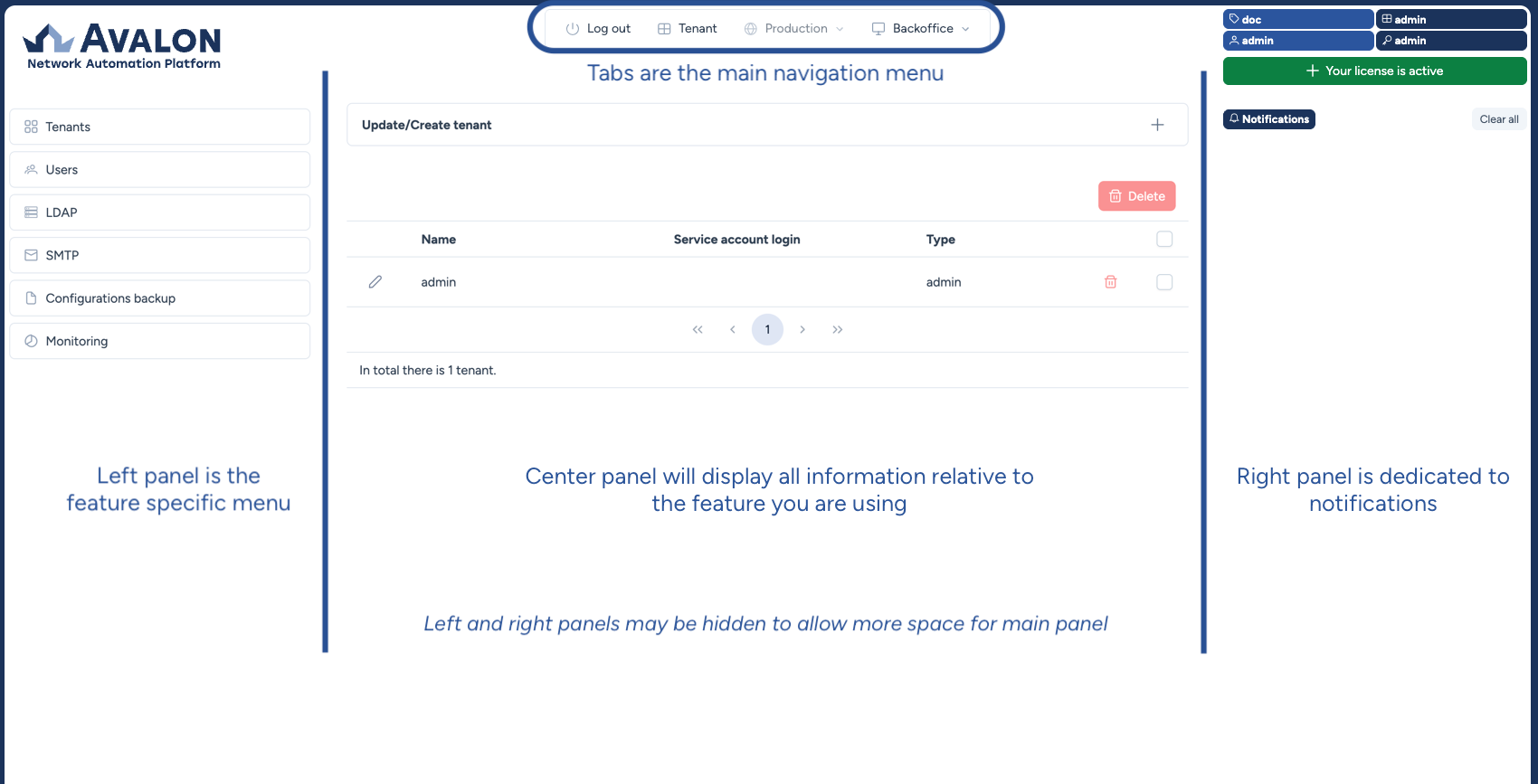
The central panel displays a collapsible component that allows you to create or update a tenant.
Note
In this documentation, a component refers to a UI element: form, dropdown list, button, datatable, etc.
Click the + sign on the right side of the component to open the creation form.
Below this component, a table lists the existing tenant(s). You can edit a tenant via the pencil icon or delete it via the trash icon.
Note
The admin tenant cannot be edited or deleted. It is not a production tenant: a regular tenant is one where you add your devices and manage your network.
Create a tenant
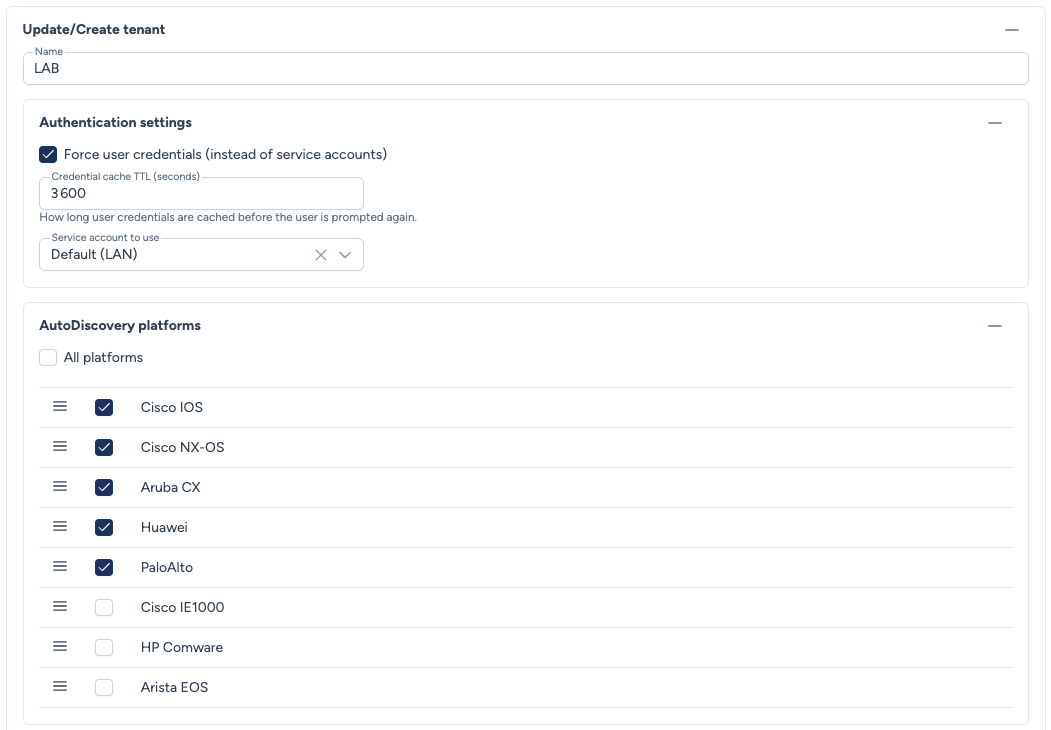
Let's create a new tenant. The form includes:
- Name: A mandatory name for your tenant.
Authentication settings
- Force user credentials (instead of service accounts): Determines when Avalon uses the logged-in user's credentials instead of a service account. Four modes available: Always, WebSSH Only, WebSSH OTP and Never (default).
- Credential cache TTL (seconds): Duration for which user credentials are cached (Always and WebSSH Only modes). Default value: 3600 (1 hour).
- Service account to use: The service account to use for this tenant. Service accounts are managed from the Service Accounts page.
For this initial setup, enter a name and select a service account:
The NetBox mapping is only set after creation
The NetBox role mapping panel does not appear in the creation form: it is only available when editing an existing tenant. Filling in the URL and token, then validating the connection, does not make it appear either.
So save the tenant first, then reopen it with the pencil icon to set the mapping.
For the full details on all options (SoT, AutoDiscovery platforms), see the Tenants page.
Move to user creation!
Now that you have created a regular tenant, it's time to create your first user.