Login
First login
Please refer to our First steps guide on the dedicated page for instructions on how to connect for the first time.
The login page can also carry a banner, whose text is free and set in Administration. See the Login banner page.
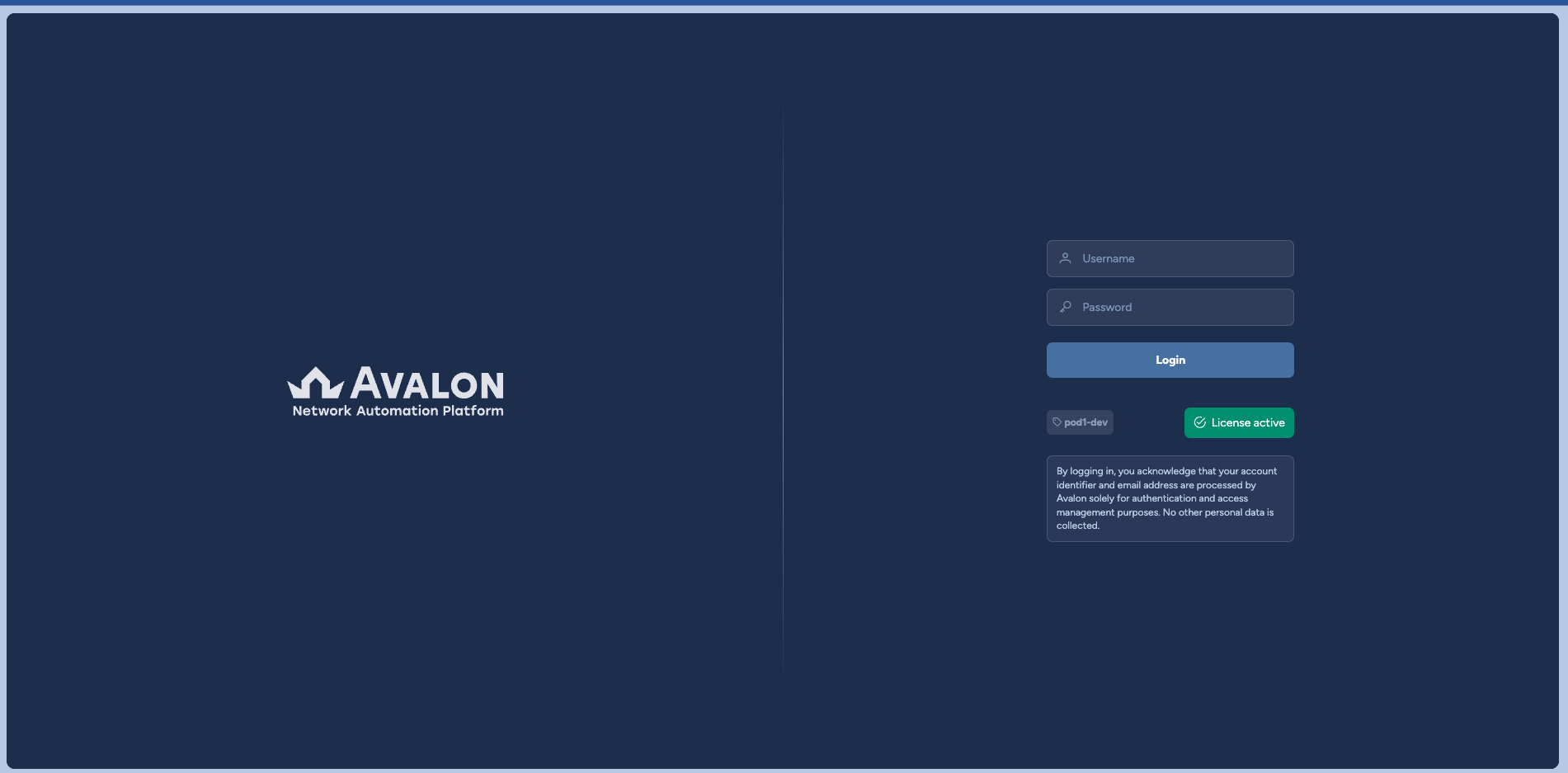
Login process
The login process works as follows:
graph TD
    Start[Enter login + password] --> Backend[Credentials received<br/>via HTTPS]

    Backend --> UserType{User type?}

    UserType -->|Local user| Hash[Password hashing]
    UserType -->|LDAP user| LDAP[Credentials forwarded<br/>to the LDAP server]

    Hash --> Compare{Match with<br/>stored hash?}
    LDAP --> LDAPResult{LDAP validation?}

    Compare -->|Yes| Success[Authentication successful]
    Compare -->|No| Failure[Invalid credentials]

    LDAPResult -->|Success| Success
    LDAPResult -->|Failure| Failure

    classDef successClass fill:#dcfce7,stroke:#166534,stroke-width:2px,color:#166534;
    classDef failClass fill:#fee2e2,stroke:#991b1b,stroke-width:2px,color:#991b1b;
    classDef neutralClass fill:#dbeafe,stroke:#1D335D,stroke-width:2px,color:#1D335D;
    classDef ldapClass fill:#E5ECF7,stroke:#86A0CB,stroke-width:2px,color:#1D335D;

    class Success successClass;
    class Failure failClass;
    class Start,Backend,UserType,Hash,Compare neutralClass;
class LDAP,LDAPResult ldapClass;- Web browser sends the user’s login and password securely via HTTPS.
-
Avalon determines the authentication method:
- Local users: the backend hashes the password and compares it to the stored hash in the database.
- LDAP users: the backend forwards the credentials to the LDAP server, which handles the authentication.
-
Depending on the result: authentication succeeds or credentials are invalid.
Note
Once you have successfully logged in, you will be automatically redirected to the Tenant tab.
At this stage, you cannot yet access the Production tab because no tenant has been selected.
From here, you can only perform the following actions:
- Log out
- Select a tenant
- Edit your profile (Backoffice → Profile)
- Import a new license