Device connection
When Avalon needs to connect to a network device (service, WebSSH, data gathering, autodiscovery, ZTP), it automatically determines which credentials to use by following a resolution cascade.
Resolution cascade
The resolution follows 4 steps, in order. As soon as a step succeeds, the remaining steps are skipped.
Step 1: Bypass device type
If the device type has the Bypass other accounts option enabled and a service account is assigned to it, that service account is used directly. No other step is evaluated.
Step 2: User credentials
The behavior of this step depends on the Force user credentials mode configured on the tenant:
- Always: all interactive actions use user credentials. The credentials prompt always appears, even if the targeted device types have bypass enabled. The backend then determines for each device whether to use the entered credentials or the device type SA.
- WebSSH Only: user credentials are only used for WebSSH sessions. For all other actions (services, data gathering, autodiscovery), Avalon proceeds to step 3.
- WebSSH OTP: identical to WebSSH Only but credentials are single-use. They are deleted immediately after being used by WebSSH. The user is prompted to re-enter credentials for each session. This mode is designed for environments with OTP authentication.
- Never: this step is skipped, Avalon proceeds directly to step 3.
For the Always and WebSSH Only modes (when applicable):
- Avalon looks for the user's credentials in cache.
- If found: those credentials are used.
- If expired or missing: a credentials prompt appears. The user must enter their credentials to continue.
For the WebSSH OTP mode: the credentials prompt always appears for each WebSSH session (no cache).
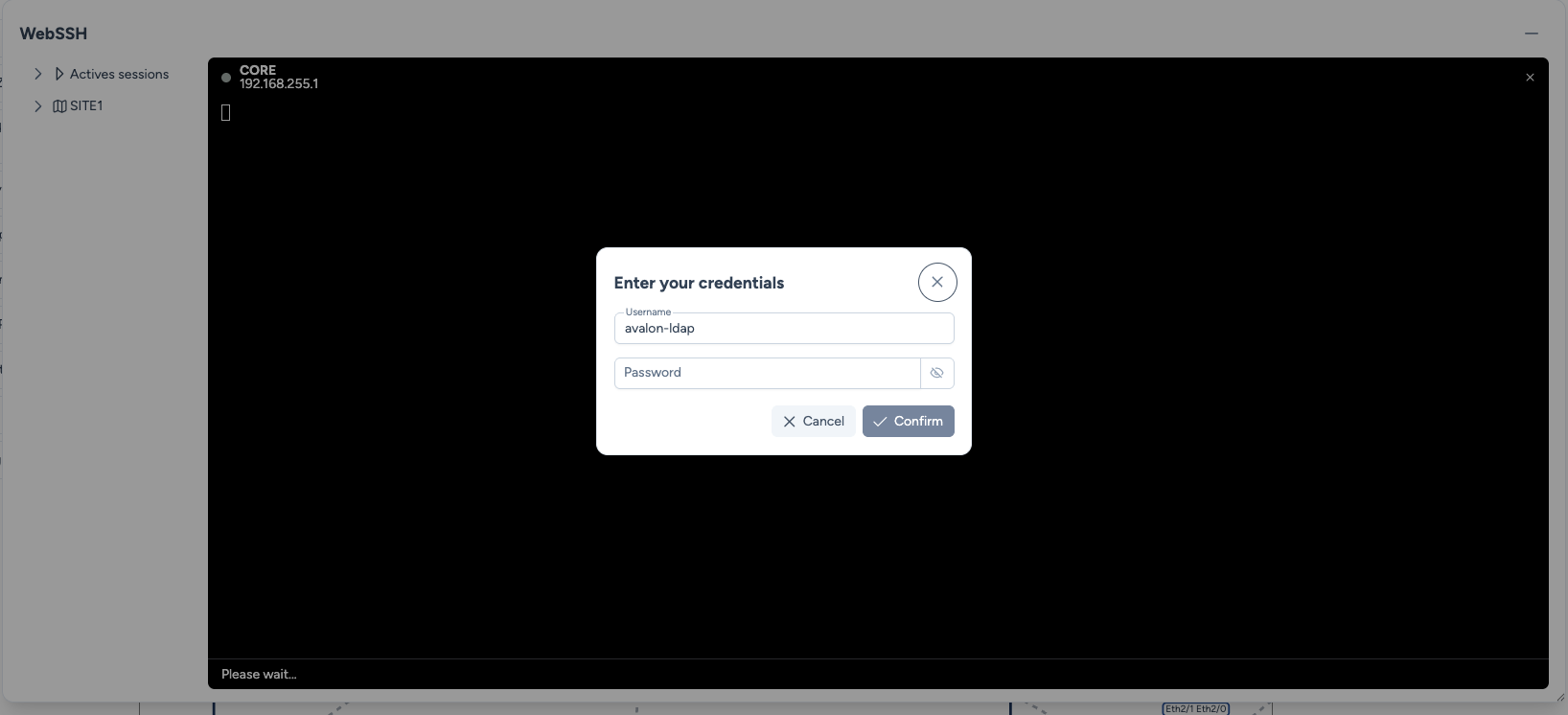
Once entered, credentials are cached for the TTL duration configured on the tenant. The remaining time is visible in the status bar. The Clear credentials icon (next to the TTL counter) allows you to manually clear the cache and re-enter new credentials without logging out.

Scheduled tasks
The scheduler is not an interactive session. This step is automatically skipped for scheduled tasks, which always use a service account (steps 3 or 4).
Step 3: Device type service account
If a service account is assigned to the device type (without the bypass option), that service account is used.
Step 4: Tenant service account
Last resort: Avalon uses the service account assigned to the tenant. If no service account is found at this step, the operation fails.
Resolution diagram
graph TD
    Start[Connect to a device] --> Step1{Bypass enabled<br/>on the device type?}

    Step1 -->|Yes + SA configured| UseSABypass[Use the device type<br/>SA]
    Step1 -->|No| LiveCheck{Scheduled task<br/>or interactive session?}

    LiveCheck -->|Scheduled task| Step3{SA assigned<br/>to the device type?}
    LiveCheck -->|Interactive session| Step2{User account<br/>usage mode?}

    Step2 -->|Never| Step3
    Step2 -->|WebSSH Only| WebSSHCheck{WebSSH<br/>session?}
    Step2 -->|WebSSH OTP| OTPCheck{WebSSH<br/>session?}
    Step2 -->|Always| CheckCache{Credentials<br/>in cache?}

    WebSSHCheck -->|No| Step3
    WebSSHCheck -->|Yes| CheckCache

    OTPCheck -->|No| Step3
    OTPCheck -->|Yes| OTPPopup[Single-use<br/>credentials prompt]
    OTPPopup -->|Confirmed| UseUser

    CheckCache -->|Yes, TTL valid| UseUser[Use user<br/>credentials]
    CheckCache -->|No or expired| Popup[Credentials<br/>prompt]
    Popup -->|Confirmed| UseUser

    Step3 -->|Yes| UseSADevice[Use the device type<br/>SA]
    Step3 -->|No| Step4{SA assigned<br/>to the tenant?}

    Step4 -->|Yes| UseSATenant[Use the tenant<br/>SA]
    Step4 -->|No| Error[Error:<br/>no credentials found]

    classDef successClass fill:#dcfce7,stroke:#166534,stroke-width:2px,color:#166534;
    classDef failClass fill:#fee2e2,stroke:#991b1b,stroke-width:2px,color:#991b1b;
    classDef neutralClass fill:#dbeafe,stroke:#1D335D,stroke-width:2px,color:#1D335D;
    classDef userClass fill:#BED1ED,stroke:#2F54A1,stroke-width:2px,color:#1D335D;
    classDef popupClass fill:#86A0CB,stroke:#1D335D,stroke-width:2px,color:#fff;

    class UseSABypass,UseSADevice,UseSATenant successClass;
    class Error failClass;
    class Start,Step1,Step2,Step3,Step4,CheckCache,LiveCheck,WebSSHCheck,OTPCheck neutralClass;
    class UseUser userClass;
    class Popup,OTPPopup popupClass;
Common scenarios
| N° | Mode | Action | Source | Result |
|---|---|---|---|---|
| 1 | Always | Service | Map / Eng. Rules | Device type SA (bypass) → User creds |
| 2 | Always | AutoDiscovery | Map | Device type SA (bypass) → User creds |
| 3 | Always | WebSSH | Map | Device type SA (bypass) → User creds |
| 4 | WebSSH Only | WebSSH | Map | Device type SA (bypass) → User creds |
| 5 | WebSSH Only | Service | Map / Eng. Rules | Device type SA (bypass) → Device type SA → Tenant SA |
| 6 | WebSSH Only | AutoDiscovery | Map | Device type SA (bypass) → Device type SA → Tenant SA |
| 7 | WebSSH OTP | WebSSH | Map | Device type SA (bypass) → User creds (single-use) |
| 8 | WebSSH OTP | Service | Map / Eng. Rules | Device type SA (bypass) → Device type SA → Tenant SA |
| 9 | Never | Any | Map / Eng. Rules | Device type SA (bypass) → Device type SA → Tenant SA |
| 10 | Any mode | Any | Schedule | Device type SA (bypass) → Device type SA → Tenant SA |
Configuration
- Service accounts: create and manage SAs from Administration > Service Accounts
- Usage mode and TTL: configure these options on the tenant
- Bypass and SA per device type: configure these options on the device type